<?xml version="1.0" encoding="utf-8"?><feed xmlns="http://www.w3.org/2005/Atom" ><generator uri="https://jekyllrb.com/" version="3.10.0">Jekyll</generator><link href="https://www.rabanser.tech/feed.xml" rel="self" type="application/atom+xml" /><link href="https://www.rabanser.tech/" rel="alternate" type="text/html" /><updated>2024-12-21T19:15:36+00:00</updated><id>https://www.rabanser.tech/feed.xml</id><title type="html">RabanserD’s Blog</title><subtitle>Daniel Rabanser&apos;s Tech Blog</subtitle><entry><title type="html">How to enable auto updates on Rocky Linux 9 w/ dnf-automatic</title><link href="https://www.rabanser.tech/2023/02/01/How-to-enable-auto-updates-on-RockyLinux-9.html" rel="alternate" type="text/html" title="How to enable auto updates on Rocky Linux 9 w/ dnf-automatic" /><published>2023-02-01T10:00:00+00:00</published><updated>2023-02-01T10:00:00+00:00</updated><id>https://www.rabanser.tech/2023/02/01/How-to-enable-auto-updates-on-RockyLinux-9</id><content type="html" xml:base="https://www.rabanser.tech/2023/02/01/How-to-enable-auto-updates-on-RockyLinux-9.html"><![CDATA[<p>This post will show you how to enable automatic system updates for your CentOS 9 / RHEL 9 / Rocky 9 system.
<!--excerpt--></p>

<p><br /></p>

<h3 id="update-your-system">Update your system</h3>
<p>It might be a good idea to update your system before installing something. Kind of ironic isn’t it? We’ll do it anyway.</p>
<div class="language-plaintext highlighter-rouge"><div class="highlight"><pre class="highlight"><code>[root@rocky ~]# yum update
</code></pre></div></div>

<p><br /></p>

<h3 id="install-dnf-automatic">Install dnf-automatic</h3>
<div class="language-plaintext highlighter-rouge"><div class="highlight"><pre class="highlight"><code>[root@rocky ~]# yum install dnf-automatic
</code></pre></div></div>

<p><br /></p>

<h3 id="configure-dnf-automatic">Configure dnf-automatic</h3>
<p>This will enable daily updates</p>
<div class="language-plaintext highlighter-rouge"><div class="highlight"><pre class="highlight"><code>[root@rocky ~]# vi /etc/dnf/automatic.conf
</code></pre></div></div>
<div class="language-plaintext highlighter-rouge"><div class="highlight"><pre class="highlight"><code>apply_updates = yes                  
</code></pre></div></div>

<p><br /></p>

<h3 id="set-a-schedule-for-updates">Set a schedule for updates</h3>
<p>By default updates are installed once a day at 06:00 with a random delay of 60m, I suggest changing that to 04:00 with a delay of 15m</p>
<div class="language-plaintext highlighter-rouge"><div class="highlight"><pre class="highlight"><code>[root@rocky ~]# systemctl edit -f dnf-automatic-install.timer
</code></pre></div></div>
<div class="language-plaintext highlighter-rouge"><div class="highlight"><pre class="highlight"><code># [Timer]
# OnCalendar=*-*-* 4:00
# RandomizedDelaySec=10m
# Persistent=true
                 
</code></pre></div></div>

<p><br /></p>

<h3 id="start-dnf-automatic">Start dnf-automatic</h3>
<p>Lastly start dnf-automatic and enable it to start automatically at boot time</p>
<div class="language-plaintext highlighter-rouge"><div class="highlight"><pre class="highlight"><code>[root@rocky ~]# systemctl enable dnf-automatic.timer
[root@rocky ~]# systemctl start dnf-automatic.timer
</code></pre></div></div>]]></content><author><name>Daniel Rabanser </name></author><category term="linux" /><summary type="html"><![CDATA[This post will show you how to enable automatic system updates for your CentOS 9 / RHEL 9 / Rocky 9 system.]]></summary></entry><entry><title type="html">How to install PHP 7.3 on CentOS 7 /w Remi</title><link href="https://www.rabanser.tech/2019/04/29/How-to-install-PHP-7.3-on-CentOS-7.html" rel="alternate" type="text/html" title="How to install PHP 7.3 on CentOS 7 /w Remi" /><published>2019-04-29T21:00:00+00:00</published><updated>2019-04-29T21:00:00+00:00</updated><id>https://www.rabanser.tech/2019/04/29/How-to-install-PHP-7.3-on-CentOS-7</id><content type="html" xml:base="https://www.rabanser.tech/2019/04/29/How-to-install-PHP-7.3-on-CentOS-7.html"><![CDATA[<p>Most modern web applications require a modern version of PHP, since RHEL/CentOS comes with 5.4 those requirements can’t always be met.
<!--excerpt--><br />
To upgrade to a more recent version of PHP you have a few options. Depending on the environment you might choose one over another.</p>

<ol>
  <li>RHEL/CentOS Software Collections (SCL)</li>
  <li>3rd Party repository such as Remi</li>
</ol>

<p>I’ll go through the second approach, I might or might not do a SCL edition of this post (probably not).<br />
Remi provides a nice <a href="https://rpms.remirepo.net/wizard/">configuration wizard</a> if you want to go for another distro/PHP version.</p>

<p><br /></p>

<h3 id="update-your-system">Update your system</h3>
<p>Get the latest updates for your CentOS server</p>
<div class="language-plaintext highlighter-rouge"><div class="highlight"><pre class="highlight"><code>[root@centos ~]# yum update
</code></pre></div></div>

<p><br /></p>

<h3 id="add-the-epel-repo-to-your-system">Add the EPEL repo to your system</h3>
<p>You’ll need to have the EPEL repository installed.</p>
<div class="language-plaintext highlighter-rouge"><div class="highlight"><pre class="highlight"><code>[root@centos ~]# yum install epel-release
</code></pre></div></div>

<p><br /></p>

<h3 id="add-the-remi-repo-to-your-system">Add the Remi repo to your system</h3>
<p>PHP will be installed from this repository</p>
<div class="language-plaintext highlighter-rouge"><div class="highlight"><pre class="highlight"><code>[root@centos ~]# yum install http://rpms.remirepo.net/enterprise/remi-release-7.rpm
</code></pre></div></div>

<p><br /></p>

<h3 id="install-yum-utils">Install yum-utils</h3>
<p>Used to manage yum repositories</p>
<div class="language-plaintext highlighter-rouge"><div class="highlight"><pre class="highlight"><code>[root@centos ~]# yum install yum-utils
</code></pre></div></div>

<p><br /></p>

<h3 id="enable-the-remi-php73-repo">Enable the remi-php73 repo</h3>
<p>That will enable the installed repository</p>
<div class="language-plaintext highlighter-rouge"><div class="highlight"><pre class="highlight"><code>[root@centos ~]# yum-config-manager --enable remi-php73
</code></pre></div></div>

<p><br /></p>

<h3 id="upgrade-php">Upgrade PHP</h3>
<p>This will upgrade PHP 5.4 to PHP 7.3</p>
<div class="language-plaintext highlighter-rouge"><div class="highlight"><pre class="highlight"><code>[root@centos ~]# yum update
</code></pre></div></div>]]></content><author><name>Daniel Rabanser </name></author><category term="linux" /><category term="web" /><summary type="html"><![CDATA[Most modern web applications require a modern version of PHP, since RHEL/CentOS comes with 5.4 those requirements can’t always be met.]]></summary></entry><entry><title type="html">How to install Zabbix 4 on CentOS 7</title><link href="https://www.rabanser.tech/2018/12/15/How-to-install-Zabbix-4-on-CentOS-7.html" rel="alternate" type="text/html" title="How to install Zabbix 4 on CentOS 7" /><published>2018-12-15T15:00:00+00:00</published><updated>2018-12-15T15:00:00+00:00</updated><id>https://www.rabanser.tech/2018/12/15/How-to-install-Zabbix-4-on-CentOS-7</id><content type="html" xml:base="https://www.rabanser.tech/2018/12/15/How-to-install-Zabbix-4-on-CentOS-7.html"><![CDATA[<p>You want to know how to install Zabbix in an Enterprise environment? Well there are plenty of how to’s, definitely don’t use this one.
<!--excerpt--><br />
So, I stumbled upon Zabbix the other day and I was thinking I make a blog post out of it. Yeah, you’re welcome ;P<br />
You might ask what is Zabbix? According to their website:</p>
<blockquote>
  <p>Zabbix is a mature and effortless enterprise-class open source monitoring solution for network monitoring and application monitoring of millions of metrics.</p>
</blockquote>

<p><br /></p>

<h3 id="update-your-system">Update your system</h3>
<p>Get the latest updates for your CentOS server</p>
<div class="language-plaintext highlighter-rouge"><div class="highlight"><pre class="highlight"><code>[root@centos ~]# yum update
</code></pre></div></div>

<p><br /></p>

<h3 id="add-zabbix-repo">Add Zabbix repo</h3>
<p>In order to install Zabbix you will need to add the Zabbix repository to your system, if your are using anything other than CentOS 7 navigate to the Zabbix <a href="https://www.zabbix.com/download">repository generator</a> to get guidance on how to install it on your desired system.</p>
<div class="language-plaintext highlighter-rouge"><div class="highlight"><pre class="highlight"><code>[root@centos ~]# rpm -i https://repo.zabbix.com/zabbix/4.0/rhel/7/x86_64/zabbix-release-4.0-1.el7.noarch.rpm
</code></pre></div></div>

<p><br /></p>

<h3 id="install-zabbix">Install Zabbix</h3>
<p>The following command will install Zabbix (Server, Web frontend &amp; agent) including some of its dependencies (MariaDB, httpd, PHP ecc. - basically the LAMP stack)<br />
If you want to install MariaDB on your own, check out <a href="/2018/10/12/How-to-install-MariaDB-v10.3-on-CentOS-7.html">this blog post</a> for guidance on that.</p>
<div class="language-plaintext highlighter-rouge"><div class="highlight"><pre class="highlight"><code>[root@centos ~]# yum install zabbix-server-mysql zabbix-web-mysql zabbix-agent
</code></pre></div></div>

<p><br /></p>

<h3 id="create-mariadb-user-database--import-schema">Create MariaDB user, database &amp; import schema</h3>
<p>In order for Zabbix to work it needs a database so what we’re going to do next is set up a blank DB &amp; then import the Zabbix schema/data.<br />
If you want to do this using phpMyAdmin go for it, I might post a phpMyAdmin article on that soon.<br />
I prefer the command line approach since that is way quicker (please set a strong password in the 3rd line).<br />
The import might take a few minutes to be patient.</p>
<div class="language-plaintext highlighter-rouge"><div class="highlight"><pre class="highlight"><code>[root@centos ~]# # mysql -uroot -p
MariaDB&gt; create database zabbix character set utf8 collate utf8_bin;
MariaDB&gt; grant all privileges on zabbix.* to zabbix@localhost identified by 'yourdesiredpw';
MariaDB&gt; quit;
[root@centos ~]# zcat /usr/share/doc/zabbix-server-mysql*/create.sql.gz | mysql -uzabbix -p zabbix
</code></pre></div></div>

<p><br /></p>

<h3 id="modify-zabbix-conf">Modify Zabbix conf</h3>
<p>Now we need to tell the Zabbix config file the password of the earlier created MariaDB user. All you need to do is uncomment &amp; edit the DBPassword= parameter.</p>
<div class="language-plaintext highlighter-rouge"><div class="highlight"><pre class="highlight"><code>[root@centos ~]# vi /etc/zabbix/zabbix_server.conf
edit:
DBPassword=password
</code></pre></div></div>

<p><br /></p>

<h3 id="modify-zabbix-apache-conf-or-phpini">Modify Zabbix Apache conf or php.ini</h3>
<p>Zabbix wants you to set the a zone, you can do this by either setting it in the Zabbix apache conf file or by editing the php.ini config file.</p>
<div class="language-plaintext highlighter-rouge"><div class="highlight"><pre class="highlight"><code>[root@centos ~]# vi /etc/httpd/conf.d/zabbix.conf
edit:
php_value date.timezone Europe/Rome
</code></pre></div></div>

<p><br /></p>

<h3 id="open-firewall-ports">Open firewall ports</h3>
<p>In order to be able to connect to the Web interface you’ll need to open up some ports.<br />
I’m also opening the Zabbix server port 10051.</p>
<div class="language-plaintext highlighter-rouge"><div class="highlight"><pre class="highlight"><code>[root@centos ~]# firewall-cmd --permanent --zone=public --add-service=http
[root@centos ~]# firewall-cmd --permanent --zone=public --add-service=https
[root@centos ~]# firewall-cmd --permanent --zone=public --add-port=10051/tcp
[root@centos ~]# firewall-cmd --reload
</code></pre></div></div>

<p><br /></p>

<h3 id="selinux">SELinux</h3>
<p>For the sake of simplicity I’ll set SELinux to permissive, if you want to know how to set it up with enforcing let me know in the comments, I might have a look at it.</p>
<div class="language-plaintext highlighter-rouge"><div class="highlight"><pre class="highlight"><code>[root@centos ~]# vi /etc/selinux/config
edit:
SELINUX=permissive
[root@centos ~]# reboot
</code></pre></div></div>

<p><br /></p>

<h3 id="start--enable-services">Start &amp; enable services</h3>
<p>At this point everything should be set up, now you’ll want to launch &amp; enable Zabbix.
If you had apache installed on your system before, you want to restart it also</p>
<div class="language-plaintext highlighter-rouge"><div class="highlight"><pre class="highlight"><code>[root@centos ~]# systemctl start zabbix-server zabbix-agent httpd
[root@centos ~]# systemctl enable zabbix-server zabbix-agent httpd
[root@centos ~]# apachectl restart
[root@centos ~]# service zabbix-server status
</code></pre></div></div>

<p><br /></p>

<h3 id="configure-zabbix-via-the-web-installer">Configure Zabbix via the web installer</h3>
<p>You shoul’d be ready for the final part of the set-up, navigate to your Servers IP / Hostname / FQDN.<br />
In my case it’s: <a href="http://zabbix.rabanser.local/zabbix">http://zabbix.rabanser.local/zabbix</a></p>

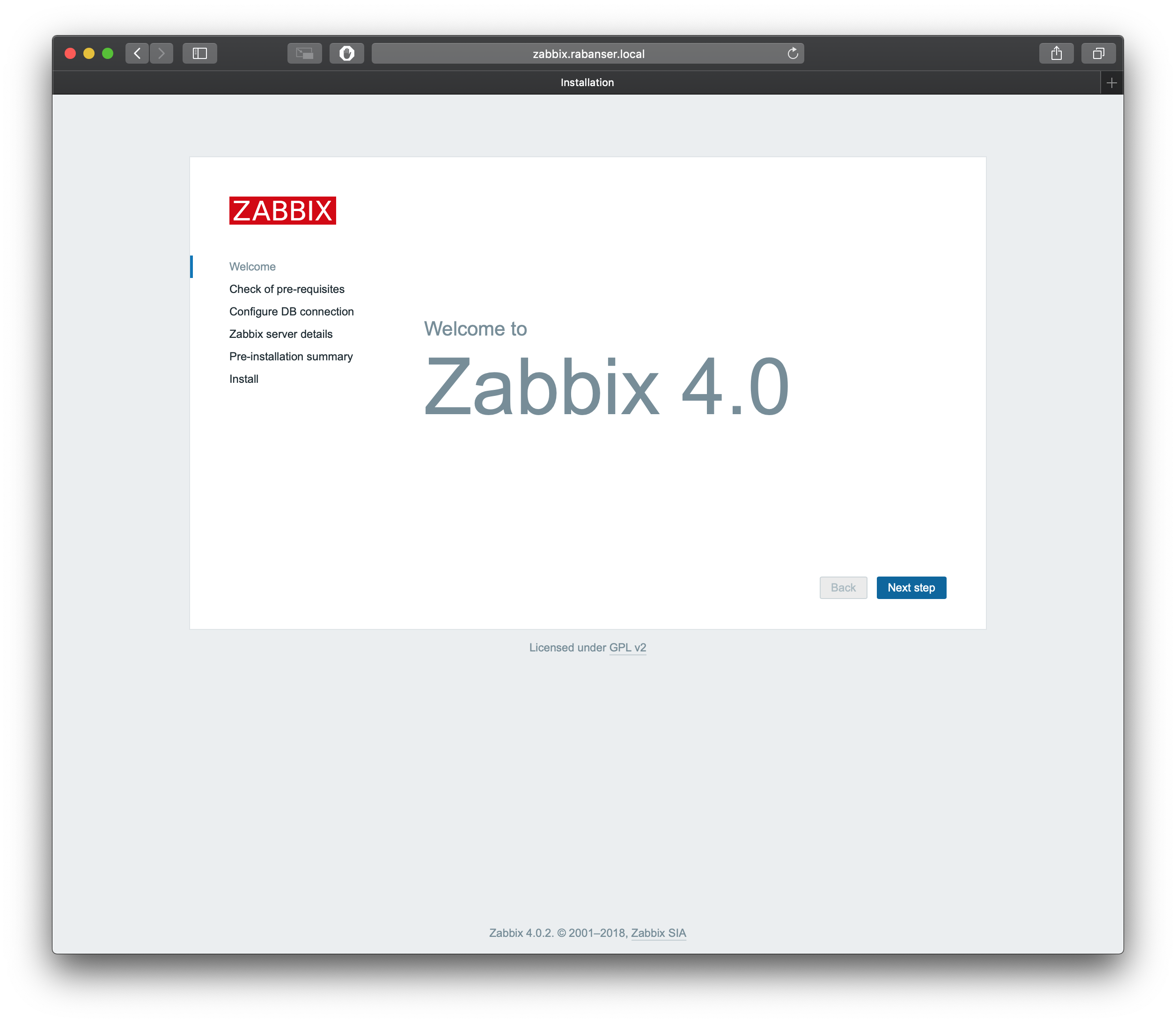
<h4 id="start-the-installation">Start the installation</h4>
<p><img src="/assets/posts/2018-12-15-how-to-install-zabbix4-on-centos7/1_Start.png" alt="Install Zabbix - Start the installation" /></p>

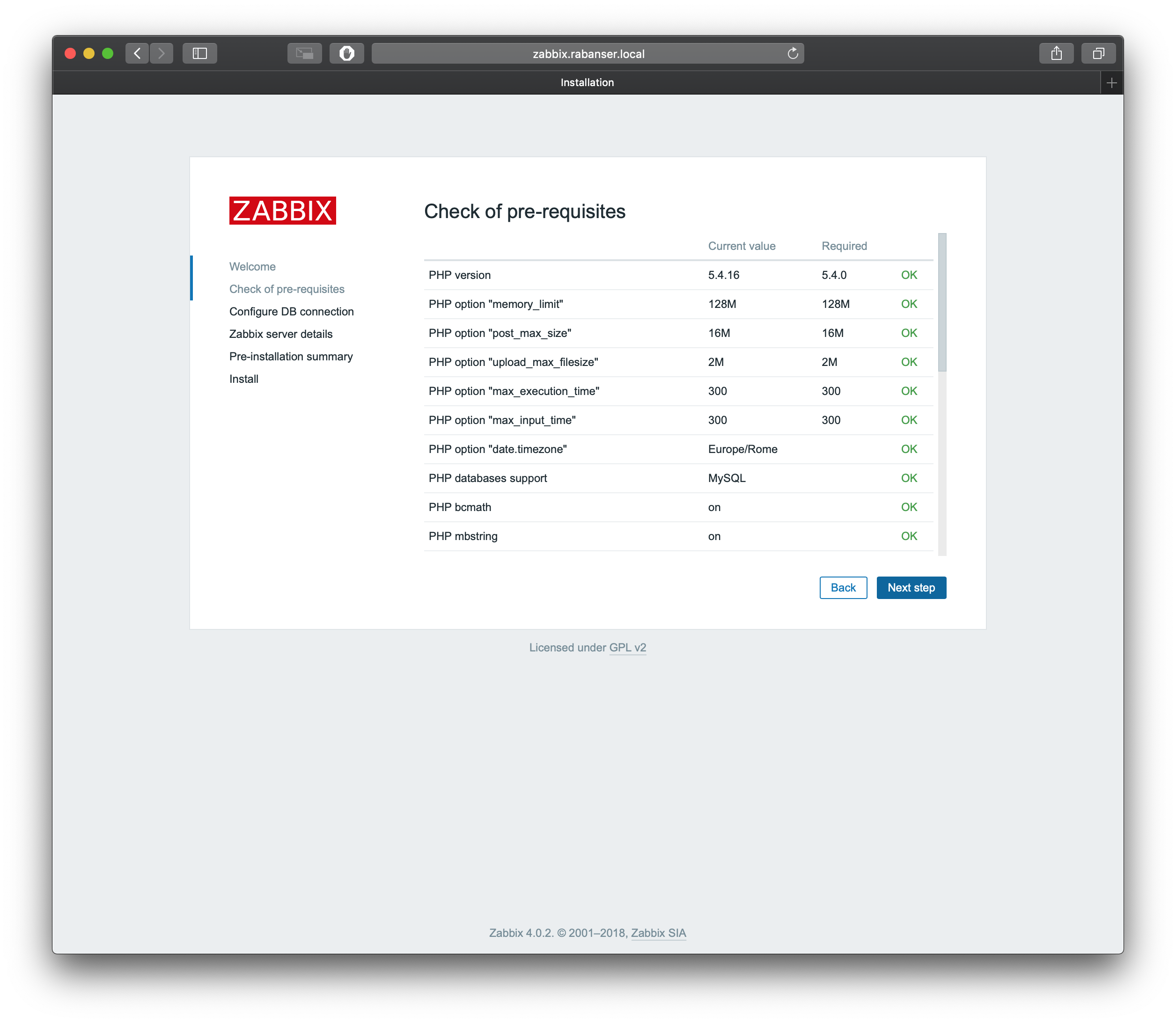
<h4 id="verify-the-installation-checks">Verify the installation checks</h4>
<p><img src="/assets/posts/2018-12-15-how-to-install-zabbix4-on-centos7/2_Check.png" alt="Install Zabbix - Installation checks" /></p>

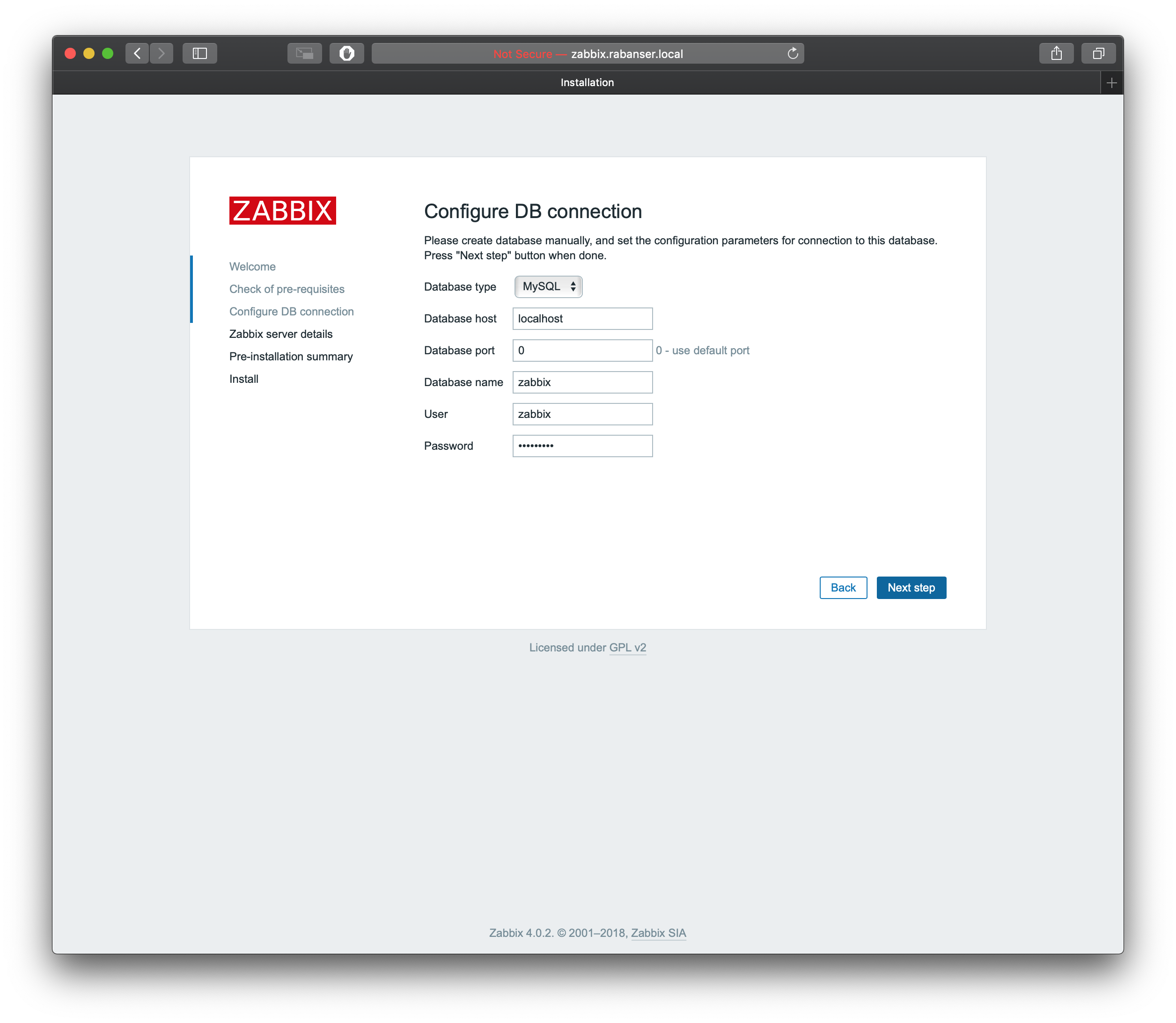
<h4 id="database-settings">Database settings</h4>
<p><img src="/assets/posts/2018-12-15-how-to-install-zabbix4-on-centos7/3_DB.png" alt="Install Zabbix - Database settings" /></p>

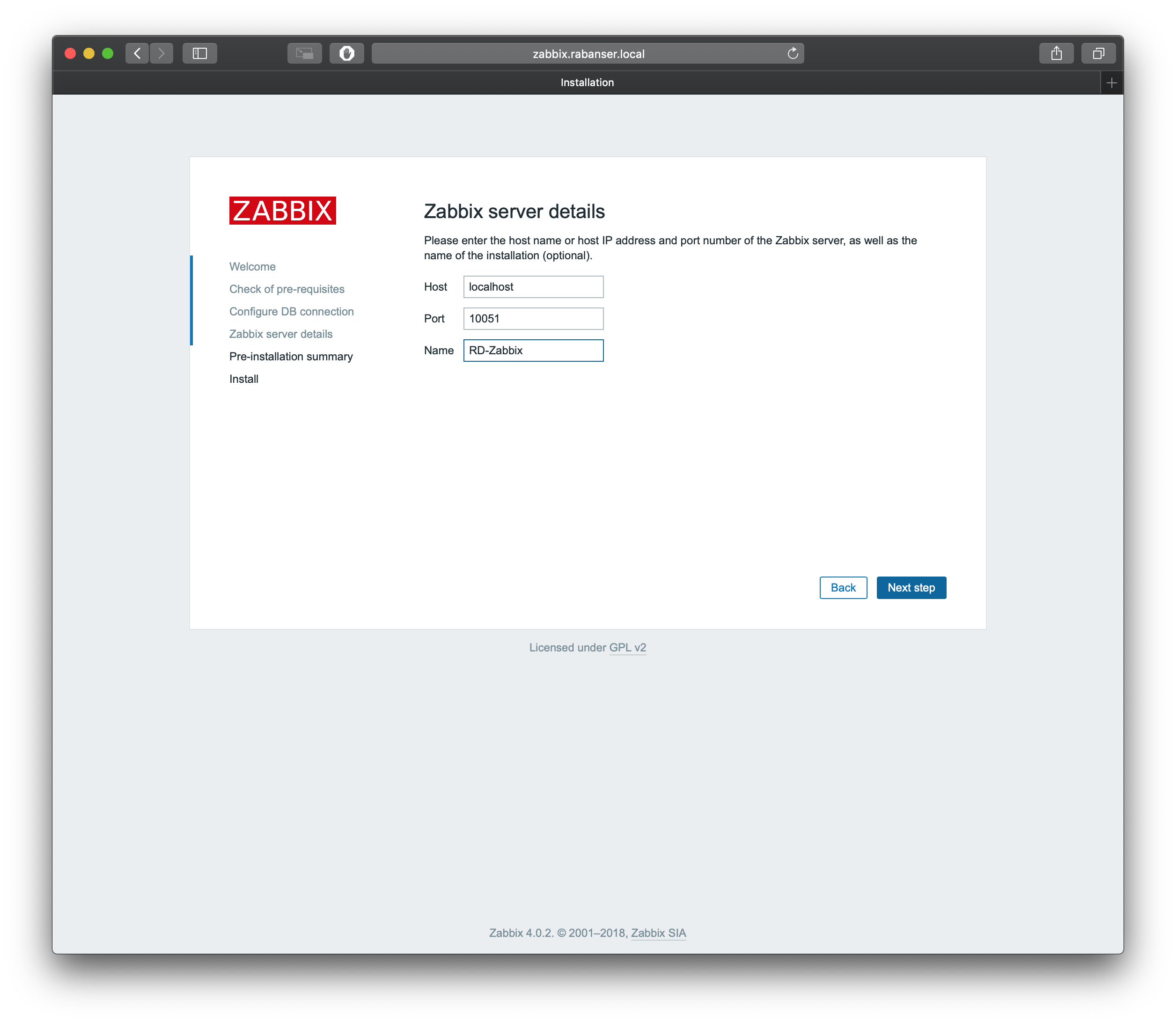
<h4 id="server-settings">Server settings</h4>
<p><img src="/assets/posts/2018-12-15-how-to-install-zabbix4-on-centos7/4_Server.png" alt="Install Zabbix - Server settings" /></p>

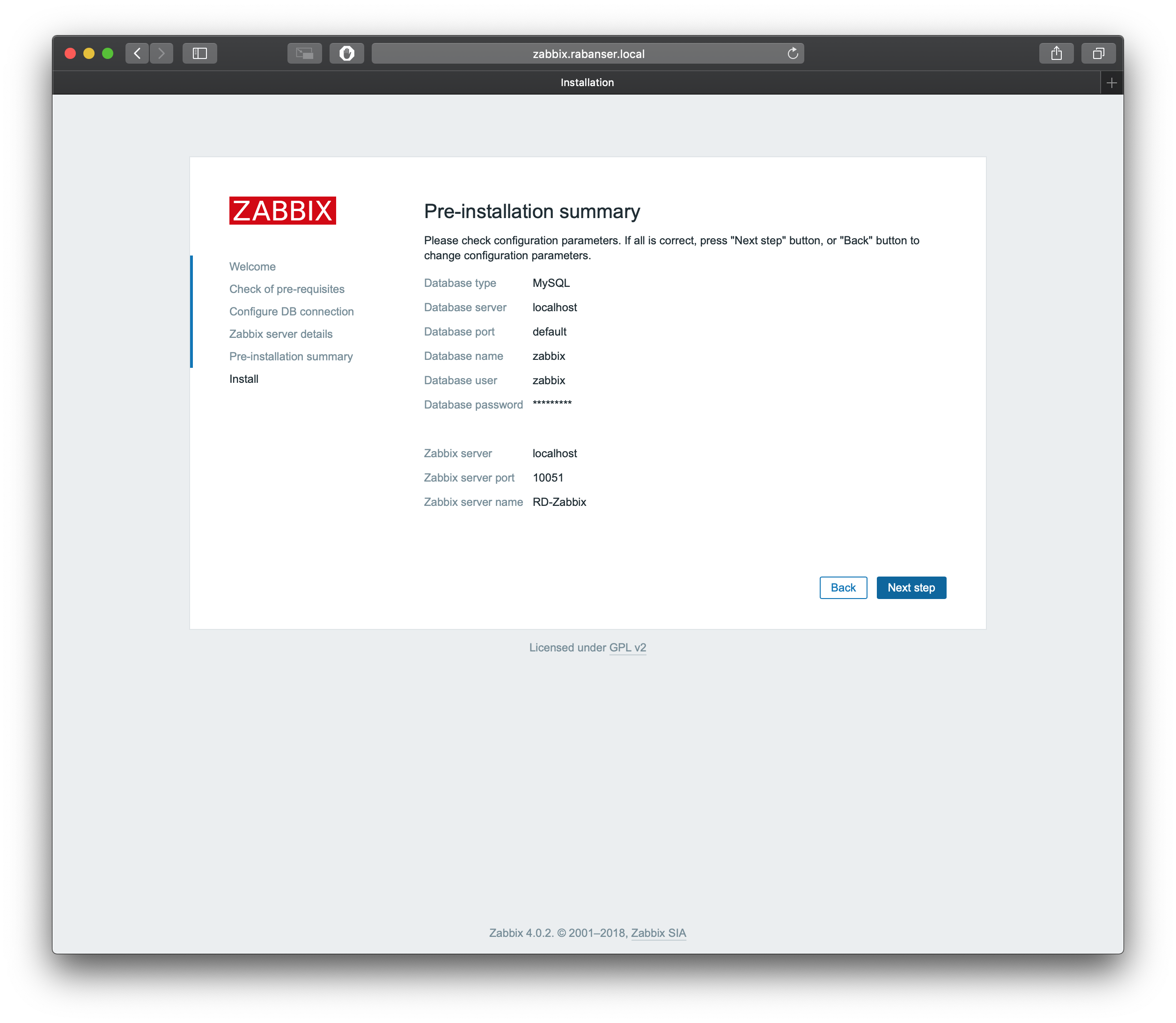
<h4 id="verify-the-summary-and-start-the-installation">Verify the summary and start the installation</h4>
<p><img src="/assets/posts/2018-12-15-how-to-install-zabbix4-on-centos7/5_Summary.png" alt="Install Zabbix - Summary" /></p>

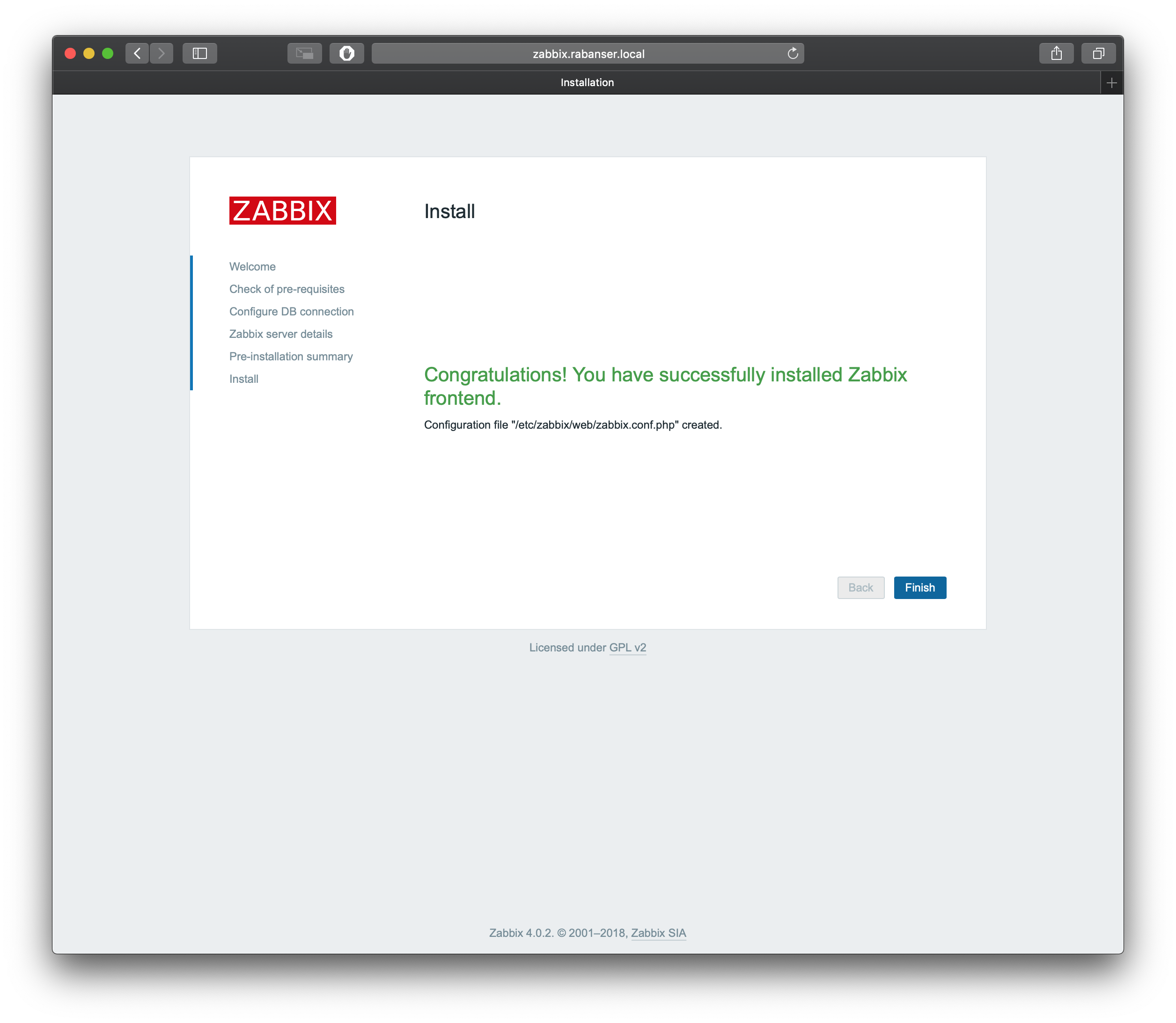
<h4 id="installation-succeeded">Installation succeeded</h4>
<p><img src="/assets/posts/2018-12-15-how-to-install-zabbix4-on-centos7/6_Done.png" alt="Install Zabbix - Installation done" /></p>

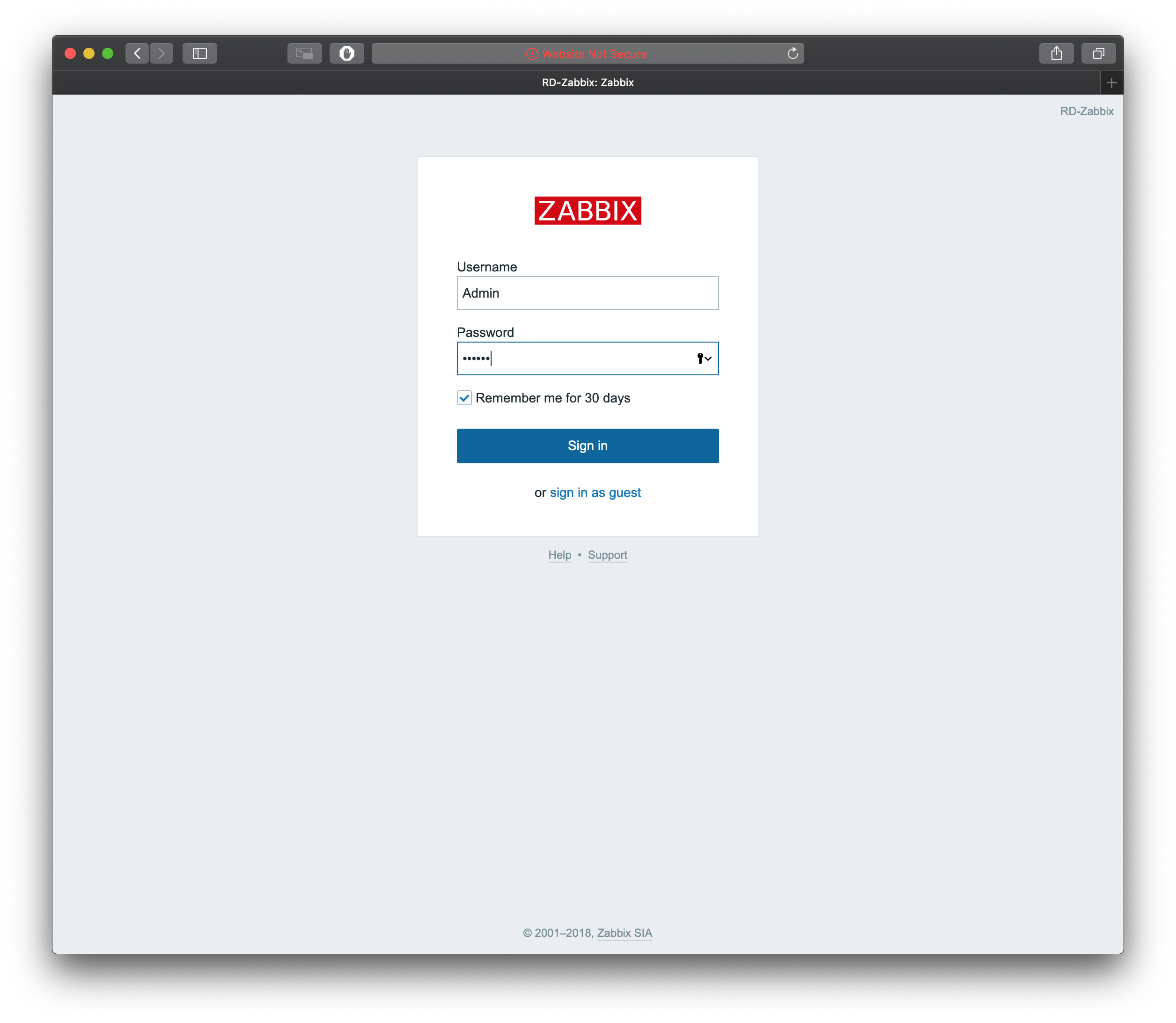
<h4 id="login-to-your-new-installation-the-defaults-are-admin--zabbix">Login to your new installation, the defaults are: Admin / zabbix</h4>
<p><img src="/assets/posts/2018-12-15-how-to-install-zabbix4-on-centos7/7_Login.png" alt="Zabbix - Login" /></p>

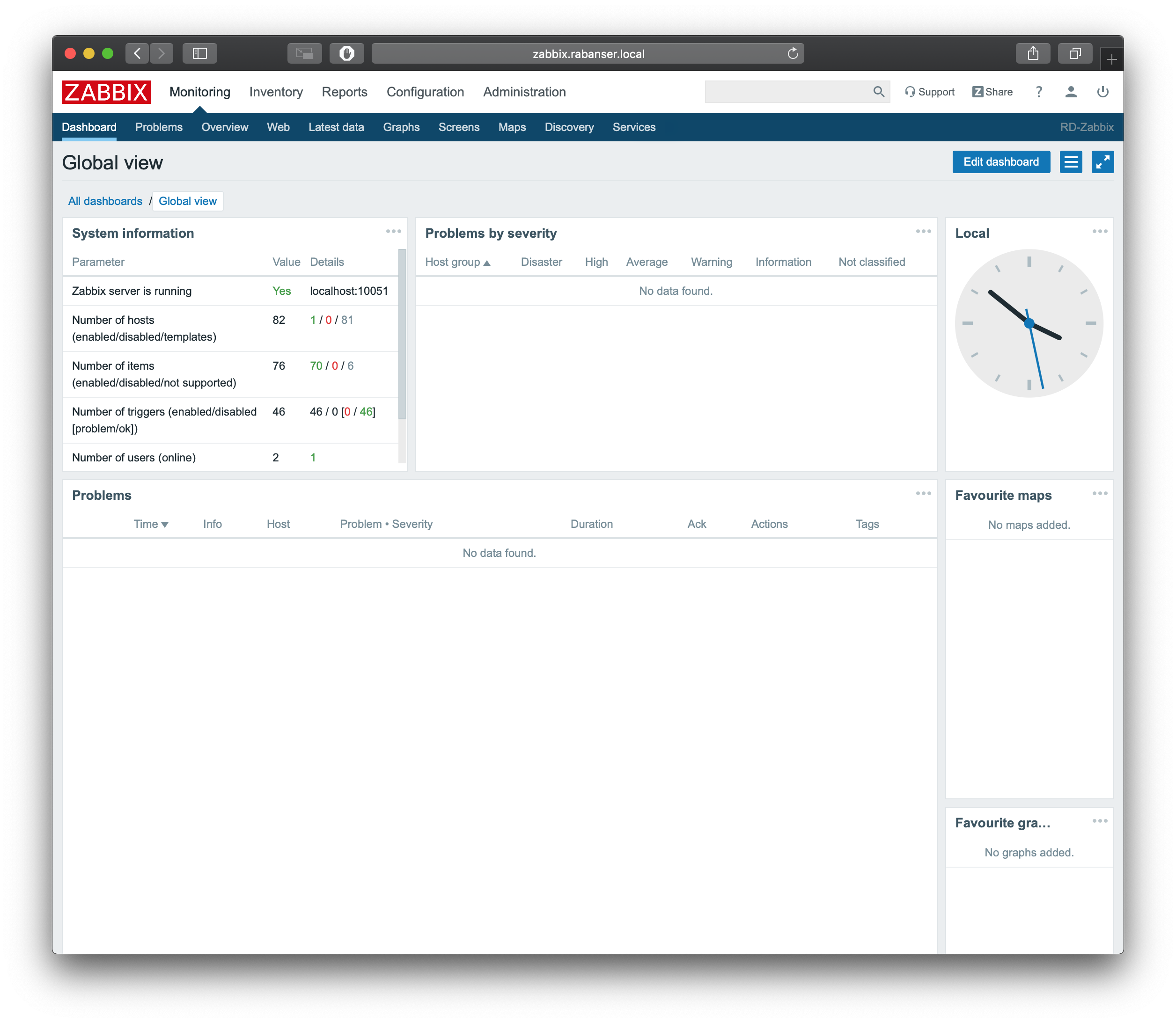
<h4 id="the-dashboard">The Dashboard</h4>
<p><img src="/assets/posts/2018-12-15-how-to-install-zabbix4-on-centos7/8_Status.png" alt="Zabbix - Dashboard" />
<br /></p>

<h3 id="wrap-up">Wrap up</h3>
<p>Thats it, that’s all there is to it. For now at least. I’m going to publish a few more articles about Initial configuration &amp; Windows monitoring.<br />
Stay tuned for that.</p>]]></content><author><name>Daniel Rabanser </name></author><category term="linux" /><category term="web" /><summary type="html"><![CDATA[You want to know how to install Zabbix in an Enterprise environment? Well there are plenty of how to’s, definitely don’t use this one.]]></summary></entry><entry><title type="html">How to install Let’s Encrypt certificates for Apache on CentOS 7 using Certbot</title><link href="https://www.rabanser.tech/2018/10/21/How-to-install-Lets-Encrypt-certificates-for-Apache-on-CentOS-7-using-certbot.html" rel="alternate" type="text/html" title="How to install Let’s Encrypt certificates for Apache on CentOS 7 using Certbot" /><published>2018-10-21T20:30:00+00:00</published><updated>2018-10-21T20:30:00+00:00</updated><id>https://www.rabanser.tech/2018/10/21/How-to-install-Lets-Encrypt-certificates-for-Apache-on-CentOS-7-using-certbot</id><content type="html" xml:base="https://www.rabanser.tech/2018/10/21/How-to-install-Lets-Encrypt-certificates-for-Apache-on-CentOS-7-using-certbot.html"><![CDATA[<p>In my previous post I went through serving websites with Apache, now I want to secure those sites with a free Let’s Encrypt certificate
<!--excerpt-->  using the certbot client.</p>

<p><br /></p>

<h3 id="update-your-system">Update your system</h3>
<p>Get the latest updates for your server</p>
<div class="language-plaintext highlighter-rouge"><div class="highlight"><pre class="highlight"><code>[root@centos ~]# yum update
</code></pre></div></div>

<p><br /></p>

<h3 id="add-the-epel-repo-to-your-system">Add the EPEL repo to your system</h3>
<p>In order to install the certbot client on CentOS 7 you’ll need to have the EPEL repository installed.</p>
<div class="language-plaintext highlighter-rouge"><div class="highlight"><pre class="highlight"><code>[root@centos ~]# yum install epel-release
</code></pre></div></div>

<p><br /></p>

<h3 id="install-certbot">Install certbot</h3>
<p>Navigate to certbot’s <a href="https://certbot.eff.org/">configurator</a> to select your distro. I’m using Apache on CentOS 7.<br />
This command below will install the certbot client and it’s needed dependencies.</p>
<div class="language-plaintext highlighter-rouge"><div class="highlight"><pre class="highlight"><code>[root@centos ~]# yum install python2-certbot-apache
</code></pre></div></div>

<p><br /></p>

<h3 id="generate-certificates--keys">Generate certificates / keys</h3>

<div class="language-plaintext highlighter-rouge"><div class="highlight"><pre class="highlight"><code>[root@centos ~]# certbot --apache
</code></pre></div></div>
<p>When you run this command for the first time you will be asked for your renewal email, Terms of Service Agreement and if you are willing to share your E-Mail with the EFF:</p>
<div class="language-plaintext highlighter-rouge"><div class="highlight"><pre class="highlight"><code>Enter email address (used for urgent renewal and security notices) (Enter 'c' to
cancel): daniel@rabanser.tech
Starting new HTTPS connection (1): acme-v02.api.letsencrypt.org

- - - - - - - - - - - - - - - - - - - - - - - - - - - - - - - - - - - - - - - -
Please read the Terms of Service at
https://letsencrypt.org/documents/LE-SA-v1.2-November-15-2017.pdf. You must
agree in order to register with the ACME server at
https://acme-v02.api.letsencrypt.org/directory
- - - - - - - - - - - - - - - - - - - - - - - - - - - - - - - - - - - - - - - -
(A)gree/(C)ancel: A

- - - - - - - - - - - - - - - - - - - - - - - - - - - - - - - - - - - - - - - -
Would you be willing to share your email address with the Electronic Frontier
Foundation, a founding partner of the Let's Encrypt project and the non-profit
organization that develops Certbot? We'd like to send you email about our work
encrypting the web, EFF news, campaigns, and ways to support digital freedom.
- - - - - - - - - - - - - - - - - - - - - - - - - - - - - - - - - - - - - - - -
(Y)es/(N)o: N
</code></pre></div></div>
<p>Then you can proceed with your certificate request:</p>
<div class="language-plaintext highlighter-rouge"><div class="highlight"><pre class="highlight"><code>Which names would you like to activate HTTPS for?
- - - - - - - - - - - - - - - - - - - - - - - - - - - - - - - - - - - - - - - -
1: simple-demo.rabanser.tech
- - - - - - - - - - - - - - - - - - - - - - - - - - - - - - - - - - - - - - - -
Select the appropriate numbers separated by commas and/or spaces, or leave input
blank to select all options shown (Enter 'c' to cancel): 1

Please choose whether or not to redirect HTTP traffic to HTTPS, removing HTTP access.
- - - - - - - - - - - - - - - - - - - - - - - - - - - - - - - - - - - - - - - -
1: No redirect - Make no further changes to the webserver configuration.
2: Redirect - Make all requests redirect to secure HTTPS access. Choose this for
new sites, or if you're confident your site works on HTTPS. You can undo this
change by editing your web server's configuration.
- - - - - - - - - - - - - - - - - - - - - - - - - - - - - - - - - - - - - - - -
Select the appropriate number [1-2] then [enter] (press 'c' to cancel): 2
Redirecting vhost in /etc/httpd/conf.d/simple-demo.rabanser.tech.conf to ssl vhost in /etc/httpd/conf.d/simple-demo.rabanser.tech-le-ssl.conf

- - - - - - - - - - - - - - - - - - - - - - - - - - - - - - - - - - - - - - - -
Congratulations! You have successfully enabled https://simple-demo.rabanser.tech
</code></pre></div></div>

<details>
 <summary>Whole output</summary>
<div>
    <div class="language-plaintext highlighter-rouge"><div class="highlight"><pre class="highlight"><code>Enter email address (used for urgent renewal and security notices) (Enter 'c' to
cancel): daniel@rabanser.tech
Starting new HTTPS connection (1): acme-v02.api.letsencrypt.org

- - - - - - - - - - - - - - - - - - - - - - - - - - - - - - - - - - - - - - - -
Please read the Terms of Service at
https://letsencrypt.org/documents/LE-SA-v1.2-November-15-2017.pdf. You must
agree in order to register with the ACME server at
https://acme-v02.api.letsencrypt.org/directory
- - - - - - - - - - - - - - - - - - - - - - - - - - - - - - - - - - - - - - - -
(A)gree/(C)ancel: A

- - - - - - - - - - - - - - - - - - - - - - - - - - - - - - - - - - - - - - - -
Would you be willing to share your email address with the Electronic Frontier
Foundation, a founding partner of the Let's Encrypt project and the non-profit
organization that develops Certbot? We'd like to send you email about our work
encrypting the web, EFF news, campaigns, and ways to support digital freedom.
- - - - - - - - - - - - - - - - - - - - - - - - - - - - - - - - - - - - - - - -
(Y)es/(N)o: N
Which names would you like to activate HTTPS for?
- - - - - - - - - - - - - - - - - - - - - - - - - - - - - - - - - - - - - - - -
1: simple-demo.rabanser.tech
- - - - - - - - - - - - - - - - - - - - - - - - - - - - - - - - - - - - - - - -
Select the appropriate numbers separated by commas and/or spaces, or leave input
blank to select all options shown (Enter 'c' to cancel): 1
Obtaining a new certificate
Performing the following challenges:
http-01 challenge for simple-demo.rabanser.tech
Waiting for verification...
Cleaning up challenges
Created an SSL vhost at /etc/httpd/conf.d/simple-demo.rabanser.tech-le-ssl.conf
Deploying Certificate to VirtualHost /etc/httpd/conf.d/simple-demo.rabanser.tech-le-ssl.conf

Please choose whether or not to redirect HTTP traffic to HTTPS, removing HTTP access.
- - - - - - - - - - - - - - - - - - - - - - - - - - - - - - - - - - - - - - - -
1: No redirect - Make no further changes to the webserver configuration.
2: Redirect - Make all requests redirect to secure HTTPS access. Choose this for
new sites, or if you're confident your site works on HTTPS. You can undo this
change by editing your web server's configuration.
- - - - - - - - - - - - - - - - - - - - - - - - - - - - - - - - - - - - - - - -
Select the appropriate number [1-2] then [enter] (press 'c' to cancel): 2
Redirecting vhost in /etc/httpd/conf.d/simple-demo.rabanser.tech.conf to ssl vhost in /etc/httpd/conf.d/simple-demo.rabanser.tech-le-ssl.conf

- - - - - - - - - - - - - - - - - - - - - - - - - - - - - - - - - - - - - - - -
Congratulations! You have successfully enabled https://simple-demo.rabanser.tech

You should test your configuration at:
https://www.ssllabs.com/ssltest/analyze.html?d=simple-demo.rabanser.tech
- - - - - - - - - - - - - - - - - - - - - - - - - - - - - - - - - - - - - - - -

IMPORTANT NOTES:
 - Congratulations! Your certificate and chain have been saved at:
   /etc/letsencrypt/live/simple-demo.rabanser.tech/fullchain.pem
   Your key file has been saved at:
   /etc/letsencrypt/live/simple-demo.rabanser.tech/privkey.pem
   Your cert will expire on 2019-01-19. To obtain a new or tweaked
   version of this certificate in the future, simply run certbot again
   with the "certonly" option. To non-interactively renew *all* of
   your certificates, run "certbot renew"
 - If you like Certbot, please consider supporting our work by:

   Donating to ISRG / Let's Encrypt:   https://letsencrypt.org/donate
   Donating to EFF:                    https://eff.org/donate-le

</code></pre></div>    </div>
  </div>
</details>

<p><br />
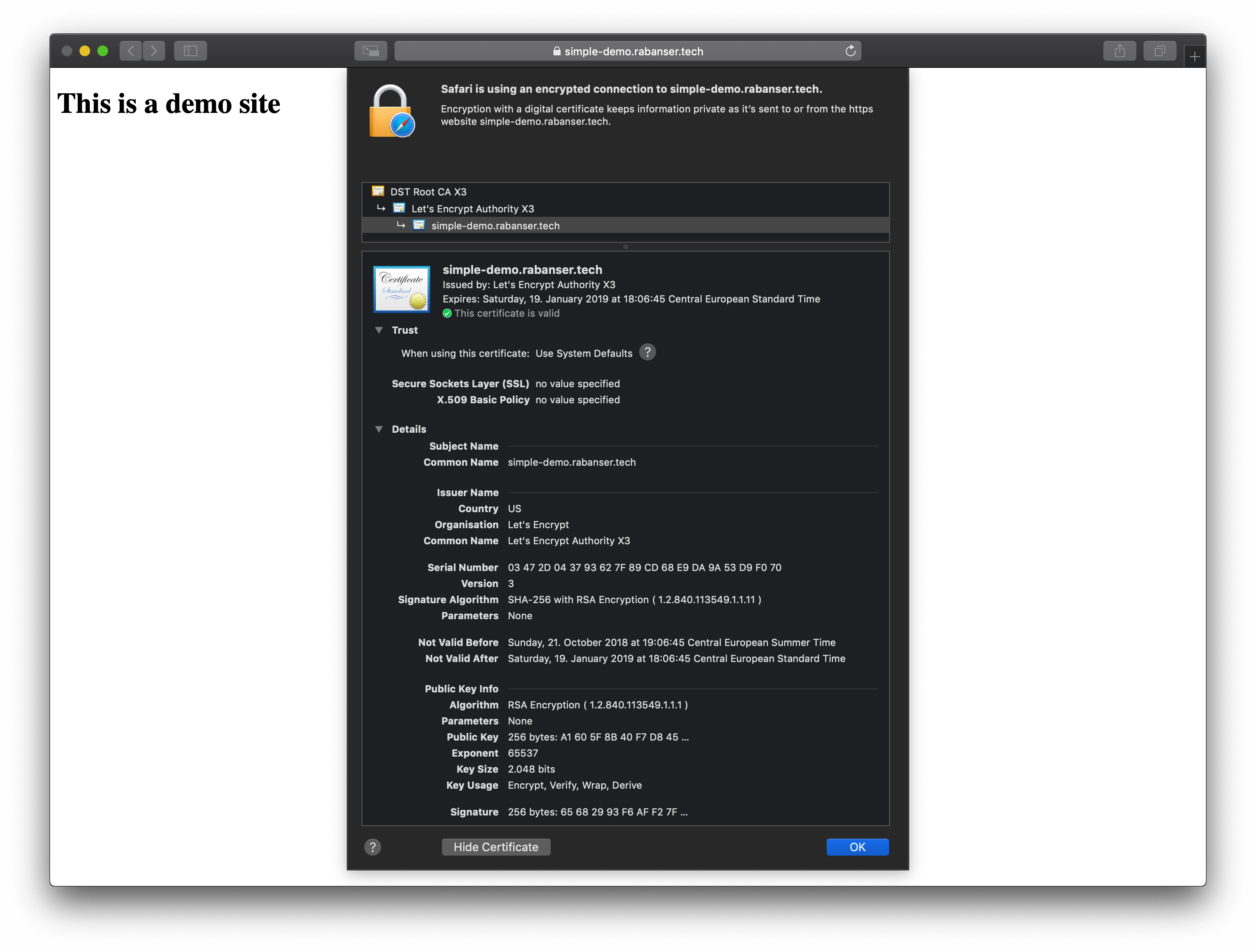
You can now navigate to your site and check your new certificate.
<img src="/assets/posts/2018-10-21-how-to-install-lets-encrypt-certificates-for-apache-on-centOS-7-using-certbot/1_Site.png" alt="Site" /></p>

<p><br /></p>

<h3 id="renew-your-certificates">Renew your certificates</h3>

<p>Manual renewal:</p>
<div class="language-plaintext highlighter-rouge"><div class="highlight"><pre class="highlight"><code>[root@centos ~]# certbot renew
</code></pre></div></div>

<p><br /></p>

<p>Since Let’s Encrypt Certificates have a validity period of 90 days, you might want to set up a cron-job which renews the certificates for you</p>

<p>Cron-job:</p>
<div class="language-plaintext highlighter-rouge"><div class="highlight"><pre class="highlight"><code>[root@centos ~]# crontab -e
</code></pre></div></div>
<p>Insert the following for a cron job which runs every day at 6 AM</p>
<div class="language-plaintext highlighter-rouge"><div class="highlight"><pre class="highlight"><code>0 6 * * * certbot renew &gt;/dev/null 2&gt;&amp;1
</code></pre></div></div>]]></content><author><name>Daniel Rabanser </name></author><category term="linux" /><category term="web" /><summary type="html"><![CDATA[In my previous post I went through serving websites with Apache, now I want to secure those sites with a free Let’s Encrypt certificate]]></summary></entry><entry><title type="html">How to serve websites with Apache on CentOS 7</title><link href="https://www.rabanser.tech/2018/10/13/How-to-serve-websites-with-Apache-on-CentOS-7.html" rel="alternate" type="text/html" title="How to serve websites with Apache on CentOS 7" /><published>2018-10-13T13:30:00+00:00</published><updated>2018-10-13T13:30:00+00:00</updated><id>https://www.rabanser.tech/2018/10/13/How-to-serve-websites-with-Apache-on-CentOS%207</id><content type="html" xml:base="https://www.rabanser.tech/2018/10/13/How-to-serve-websites-with-Apache-on-CentOS-7.html"><![CDATA[<p>Since I want to make a post about phpMyAdmin, I’m splitting the requirements part into multiple posts. Apache stuff out right now.<br />
<!--excerpt--><br />
In this post I want to go through this:</p>
<ul>
  <li>Install Apache on CentOS 7</li>
  <li>Set up Apache</li>
  <li>Serve a simple HTML site<br />
– with a Virtual Hosts configuration (accessible with a FQDN)</li>
</ul>

<p><br /></p>

<h3 id="update-your-system">Update your system</h3>
<p>Get the latest updates for your server</p>
<div class="language-plaintext highlighter-rouge"><div class="highlight"><pre class="highlight"><code>[root@centos ~]# yum update
</code></pre></div></div>

<p><br /></p>

<h3 id="install-apache">Install Apache</h3>
<p>Install the Apache version that comes with CentOS 7</p>
<div class="language-plaintext highlighter-rouge"><div class="highlight"><pre class="highlight"><code>[root@centos ~]# yum install httpd
</code></pre></div></div>

<p><br /></p>

<h3 id="start-apache">Start Apache</h3>
<p>Now you can start the web server and enable it to start automatically at boot time</p>
<div class="language-plaintext highlighter-rouge"><div class="highlight"><pre class="highlight"><code>[root@centos ~]# systemctl start httpd
[root@centos ~]# systemctl enable httpd
</code></pre></div></div>

<p><br /></p>

<h3 id="set-firewall-rules">Set firewall rules</h3>
<p>In order to access the websites hosted on the web server you’ll need to allow HTTP/s communications</p>
<div class="language-plaintext highlighter-rouge"><div class="highlight"><pre class="highlight"><code>[root@centos ~]# firewall-cmd --permanent --zone=public --add-service=http
[root@centos ~]# firewall-cmd --permanent --zone=public --add-service=https
[root@centos ~]# firewall-cmd --reload
</code></pre></div></div>

<p><br /></p>

<h3 id="test-your-setup">Test your setup</h3>
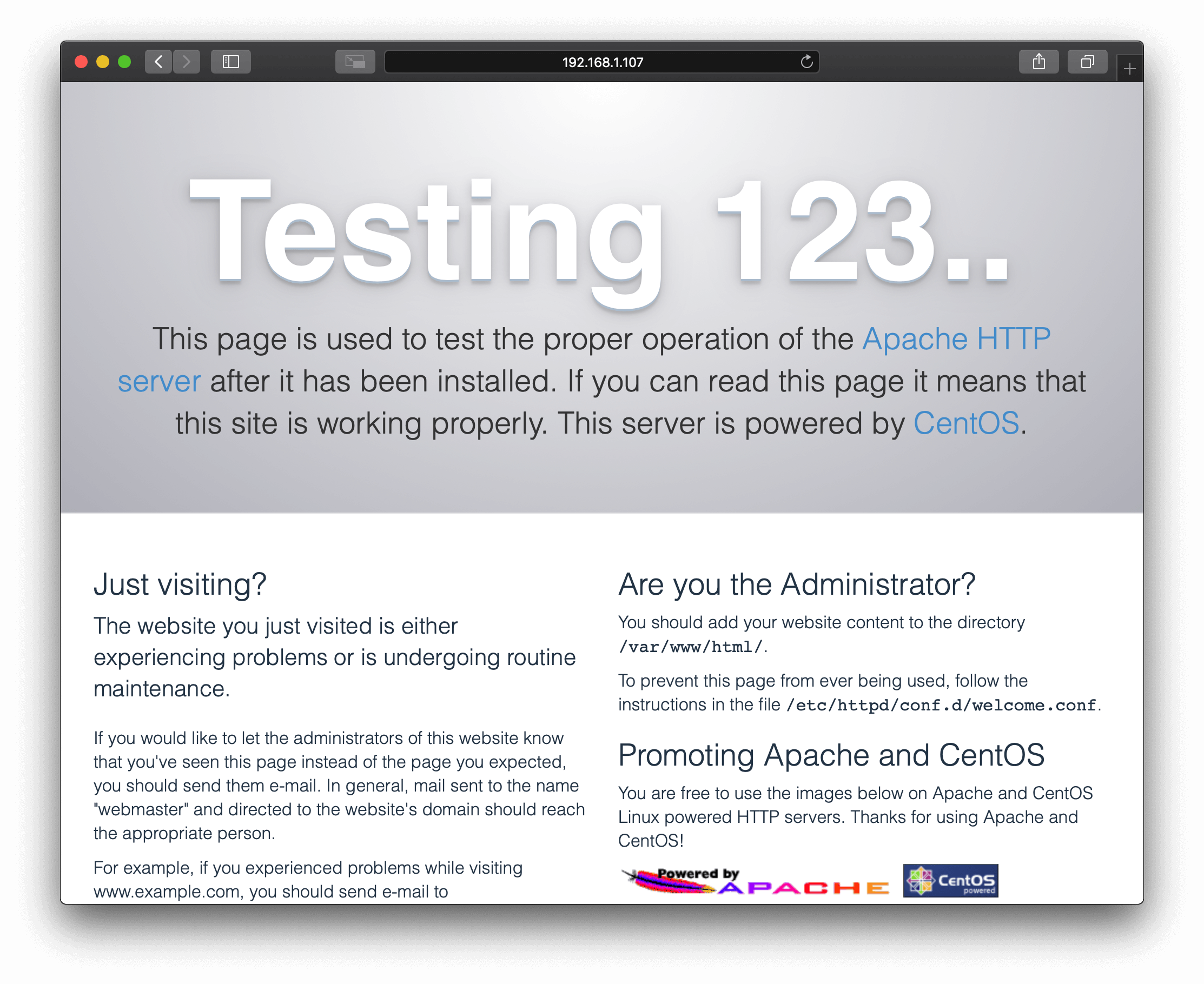
<p>If you followed everything correctly, you should see “The Testing 123…” when navigating to your Servers IP address
<img src="/assets/posts/2018-10-13-how-to-serve-websites-with-apache-on-centos7/1_Testing123.png" alt="Testing 123..." /></p>

<h3 id="initial-apache-setup">Initial Apache setup</h3>
<p>So, your server could now serve a website in the root path /var/www/html/*, but you might want to use the web server to serve multiple sites which are accessible by different FQDN’s (at least that’s how I use my servers). In order to do that you firstly want to disable the Apache Welcome page by placing a sample index.html file in the /var/www/html folder.<br />
I prefer a simple index.html file that redirects users to my main website (in case someone tries to access the Servers IP address / FQDN ecc.)</p>

<div class="language-plaintext highlighter-rouge"><div class="highlight"><pre class="highlight"><code>[root@centos ~]# vi /var/www/html/index.html
</code></pre></div></div>
<p>Tweak to your needs, and insert that into the file:</p>
<div class="language-html highlighter-rouge"><div class="highlight"><pre class="highlight"><code><span class="cp">&lt;!DOCTYPE html&gt;</span>
<span class="nt">&lt;html&gt;</span>
   <span class="nt">&lt;head&gt;</span>
      <span class="nt">&lt;title&gt;</span>Redirecting<span class="nt">&lt;/title&gt;</span>
      <span class="nt">&lt;meta</span> <span class="na">http-equiv=</span><span class="s">"refresh"</span> <span class="na">content=</span><span class="s">"0; URL='https://www.rabanser.tech'"</span> <span class="nt">/&gt;</span>
   <span class="nt">&lt;/head&gt;</span>
   <span class="nt">&lt;body&gt;</span>
      <span class="nt">&lt;p&gt;&lt;a</span> <span class="na">href=</span><span class="s">"https://www.rabanser.tech"</span><span class="nt">&gt;</span>If you are not being redirected automatically click on this link<span class="nt">&lt;/a&gt;&lt;/p&gt;</span>
   <span class="nt">&lt;/body&gt;</span>
<span class="nt">&lt;/html&gt;</span>
</code></pre></div></div>

<p><br /></p>

<h3 id="create-a-website">Create a website</h3>
<p>Now you’re all set to deploy websites on your server, I’ll start by setting up a demo site accessible at http://simple-demo.rabanser.tech<br />
Let’s start by creating the required folder structure and provide it with a small index.html file:</p>
<div class="language-plaintext highlighter-rouge"><div class="highlight"><pre class="highlight"><code>[root@centos ~]# mkdir /var/www/html/simple-demo.rabanser.tech
[root@centos ~]# vi /var/www/html/simple-demo.rabanser.tech/index.html
</code></pre></div></div>
<div class="language-html highlighter-rouge"><div class="highlight"><pre class="highlight"><code><span class="cp">&lt;!DOCTYPE html&gt;</span>
<span class="nt">&lt;html&gt;</span>
   <span class="nt">&lt;head&gt;</span>
      <span class="nt">&lt;title&gt;</span>Demo Site<span class="nt">&lt;/title&gt;</span>
   <span class="nt">&lt;/head&gt;</span>
   <span class="nt">&lt;body&gt;</span>
      <span class="nt">&lt;h1&gt;</span>This is a demo site<span class="nt">&lt;/h1&gt;</span>
   <span class="nt">&lt;/body&gt;</span>
<span class="nt">&lt;/html&gt;</span>
</code></pre></div></div>

<p>Let’s continue with the Apache config file for our demo website, config files are located in /etc/httpd/conf.d/ and have a .conf extension.<br />
I create a config file per web:</p>
<div class="language-plaintext highlighter-rouge"><div class="highlight"><pre class="highlight"><code>[root@centos ~]# vi /etc/httpd/conf.d/simple-demo.rabanser.tech.conf
</code></pre></div></div>
<p>Tweak to your needs and then insert it in the config file</p>
<div class="language-plaintext highlighter-rouge"><div class="highlight"><pre class="highlight"><code>&lt;VirtualHost *:80&gt;
   ServerName simple-demo.rabanser.tech
   DocumentRoot "/var/www/html/simple-demo.rabanser.tech"
&lt;/VirtualHost&gt;
</code></pre></div></div>
<p>Test the configuration and restart the server</p>
<div class="language-plaintext highlighter-rouge"><div class="highlight"><pre class="highlight"><code>[root@centos ~]# apachectl configtest
Syntax OK
[root@centos ~]# apachectl restart
</code></pre></div></div>
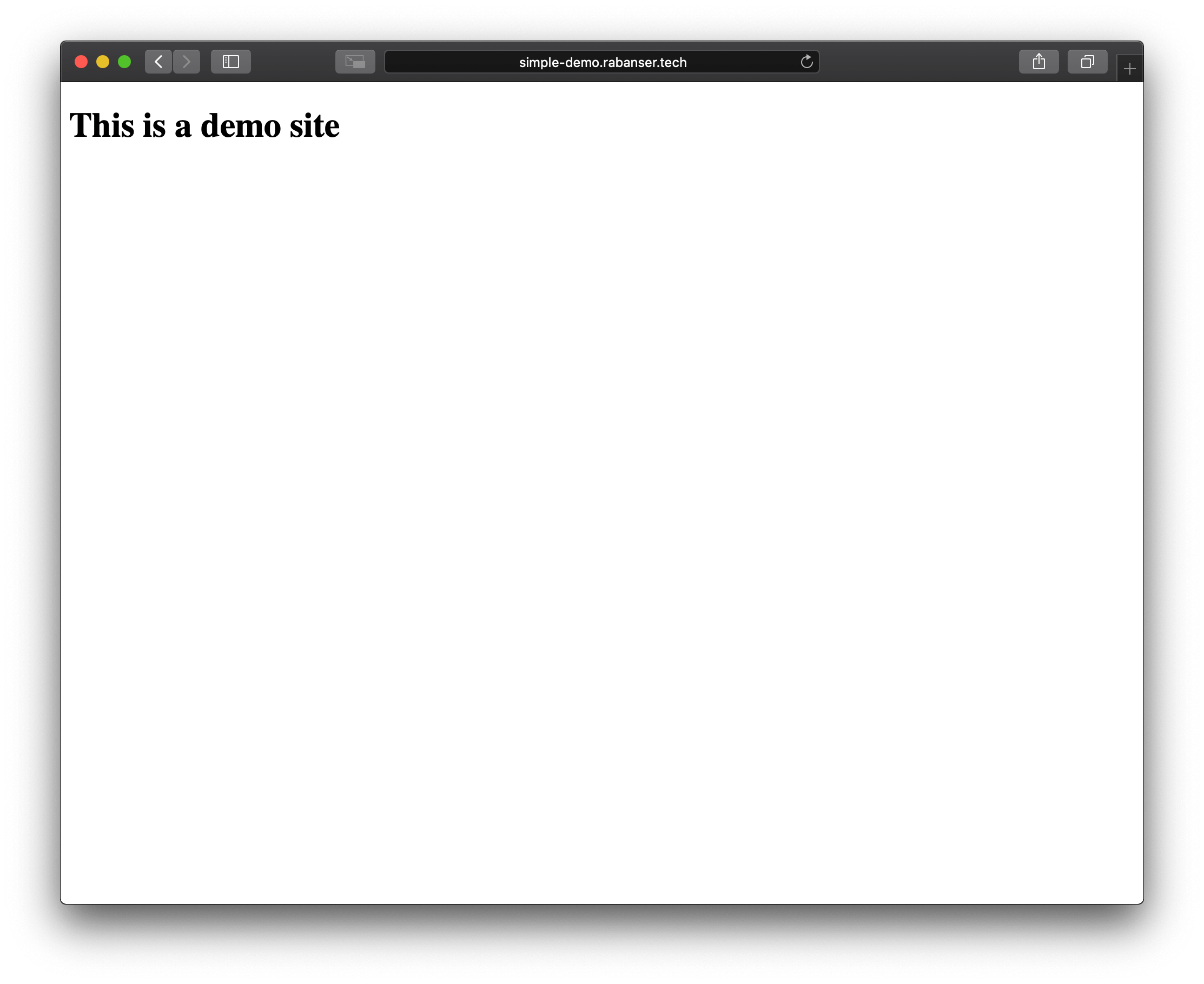
<p>Lastly you want to set your DNS configuration (I’m just running a lab environment, so I’m going to change my host file).<br />
If you’re all set with DNS you can try to navigate to your site, you should see your site at <a href="http://simple-demo.rabanser.tech">http://simple-demo.rabanser.tech</a>
<img src="/assets/posts/2018-10-13-how-to-serve-websites-with-apache-on-centos7/2_DemoSite.png" alt="Demo Site" /></p>

<h3 id="wrap-up">Wrap up</h3>
<p>That’s it, that all you need to do in order to serve web sites with Apache on CentOS, if you want to host multiple sites, all you need to do is repeat the “Create a website” step and you’re all sorted.</p>

<p>In the next post I’ll go through how to secure your websites with Let’s Encrypt certificates (since you ever want to serve your sites securely)</p>]]></content><author><name>Daniel Rabanser </name></author><category term="linux" /><category term="web" /><category term="apache" /><summary type="html"><![CDATA[Since I want to make a post about phpMyAdmin, I’m splitting the requirements part into multiple posts. Apache stuff out right now.]]></summary></entry><entry><title type="html">How to install MariaDB v10.3 on CentOS 7</title><link href="https://www.rabanser.tech/2018/10/12/How-to-install-MariaDB-v10.3-on-CentOS-7.html" rel="alternate" type="text/html" title="How to install MariaDB v10.3 on CentOS 7" /><published>2018-10-12T19:00:00+00:00</published><updated>2018-10-12T19:00:00+00:00</updated><id>https://www.rabanser.tech/2018/10/12/How-to-install-MariaDB-v10.3-on-CentOS-7</id><content type="html" xml:base="https://www.rabanser.tech/2018/10/12/How-to-install-MariaDB-v10.3-on-CentOS-7.html"><![CDATA[<p>Hello there, <em>General Kenobi</em>. Just gonna share here how to install the latest MariaDB Server on CentOS.
<!--excerpt--><br />
Since CentOS 7 comes with a dated (but still maintained) version of MariaDB, I just want to share how to install the latest and greatest version.</p>

<p><br /></p>

<h3 id="update-your-system">Update your system</h3>
<p>Get the latest updates for your server</p>
<div class="language-plaintext highlighter-rouge"><div class="highlight"><pre class="highlight"><code>[root@centos ~]# yum update
</code></pre></div></div>

<p><br /></p>

<h3 id="install-using-repository-generator">Install using repository generator</h3>
<p>Navigate to MariaDB’s <a href="https://downloads.mariadb.org/mariadb/repositories/#mirror=nav">repository generator</a> to really get the latest version<br />
Hit up vi or your preferred text editor</p>
<div class="language-plaintext highlighter-rouge"><div class="highlight"><pre class="highlight"><code>[root@centos ~]# vi /etc/yum.repos.d/MariaDB.repo
</code></pre></div></div>
<p>Insert the following and save the file</p>
<div class="language-plaintext highlighter-rouge"><div class="highlight"><pre class="highlight"><code># MariaDB 10.3 CentOS repository list - created 2018-10-12 18:16 UTC
# http://downloads.mariadb.org/mariadb/repositories/
[mariadb]
name = MariaDB
baseurl = http://yum.mariadb.org/10.3/centos7-amd64
gpgkey=https://yum.mariadb.org/RPM-GPG-KEY-MariaDB
gpgcheck=1
</code></pre></div></div>

<p><br /></p>

<h3 id="install-mariadb-server">Install MariaDB Server</h3>
<p>Now you’ll be able to install MariaDB 10.3:</p>
<div class="language-plaintext highlighter-rouge"><div class="highlight"><pre class="highlight"><code>[root@centos ~]# yum install MariaDB-server MariaDB-client
</code></pre></div></div>

<p><br /></p>

<h3 id="start-mariadb--enable-autostart">Start MariaDB / Enable autostart</h3>
<p>What you want to do next is to start MariaDB and enable it to start automatically on boot time</p>
<div class="language-plaintext highlighter-rouge"><div class="highlight"><pre class="highlight"><code>[root@centos ~]# systemctl start mariadb
[root@centos ~]# systemctl enable mariadb
</code></pre></div></div>

<p><br /></p>

<h3 id="initial-configuration">Initial configuration</h3>
<p>Now you’ll need to run the installation script, it sets up the server<br />
Watch out if you want to manage the server using MySQL Workbench (you want to choose “n” for remote root login),<br />
I prefer to user phpMyAdmin so I’m turning it off though</p>
<div class="language-plaintext highlighter-rouge"><div class="highlight"><pre class="highlight"><code>[root@centos ~]# mysql_secure_installation
</code></pre></div></div>
<div class="language-plaintext highlighter-rouge"><div class="highlight"><pre class="highlight"><code>Set root password? [Y/n] y
Remove anonymous users? [Y/n] Y
Disallow root login remotely? [Y/n] Y
Remove test database and access to it? [Y/n] Y
Reload privilege tables now? [Y/n] Y
</code></pre></div></div>

<p><br /></p>
<h3 id="wrap-up">Wrap up</h3>
<p>That’s it, that’s all you need to do to get MariaDB up and running. 
You can verify the installed version of MariaDB by typing:</p>
<div class="language-plaintext highlighter-rouge"><div class="highlight"><pre class="highlight"><code>[root@centos ~]# mysql -V
</code></pre></div></div>

<p><br /></p>

<p>If you want to know how to install and set up phpMyAdmin(will let you administer MariaDB via a Web Browser) I might do a post on that soon.</p>]]></content><author><name>Daniel Rabanser </name></author><category term="linux" /><category term="database" /><summary type="html"><![CDATA[Hello there, General Kenobi. Just gonna share here how to install the latest MariaDB Server on CentOS.]]></summary></entry><entry><title type="html">How to enable auto updates on CentOS 7 w/ yum-cron</title><link href="https://www.rabanser.tech/2018/07/05/How-to-enable-auto-updates-on-CentOS-7.html" rel="alternate" type="text/html" title="How to enable auto updates on CentOS 7 w/ yum-cron" /><published>2018-07-05T18:00:00+00:00</published><updated>2018-07-05T18:00:00+00:00</updated><id>https://www.rabanser.tech/2018/07/05/How-to-enable-auto-updates-on-CentOS-7</id><content type="html" xml:base="https://www.rabanser.tech/2018/07/05/How-to-enable-auto-updates-on-CentOS-7.html"><![CDATA[<p>In this post you will learn how to enable automatic system updates for your CentOS 7 / RHEL 7 system.
<!--excerpt--></p>

<p><br /></p>

<h3 id="update-your-system">Update your system</h3>
<p>It might be a good idea to update your system before installing something. Kind of ironic isn’t it? We’ll do it anyway.</p>
<div class="language-plaintext highlighter-rouge"><div class="highlight"><pre class="highlight"><code>[root@centos ~]# yum update
</code></pre></div></div>

<p><br /></p>

<h3 id="install-yum-cron">Install yum-cron</h3>
<div class="language-plaintext highlighter-rouge"><div class="highlight"><pre class="highlight"><code>[root@centos ~]# yum install yum-cron
</code></pre></div></div>

<p><br /></p>

<h3 id="configure-yum-cron">Configure yum-cron</h3>
<p>This will enable daily updates</p>
<div class="language-plaintext highlighter-rouge"><div class="highlight"><pre class="highlight"><code>[root@centos ~]# vi /etc/yum/yum-cron.conf
</code></pre></div></div>
<div class="language-plaintext highlighter-rouge"><div class="highlight"><pre class="highlight"><code>apply_updates = yes                  
</code></pre></div></div>

<p>This will enable hourly security updates</p>
<div class="language-plaintext highlighter-rouge"><div class="highlight"><pre class="highlight"><code>[root@centos ~]# vi /etc/yum/yum-cron-hourly.conf
</code></pre></div></div>
<div class="language-plaintext highlighter-rouge"><div class="highlight"><pre class="highlight"><code>update_cmd = security
update_messages = yes
download_updates = yes
apply_updates = yes
</code></pre></div></div>

<p><br /></p>

<h3 id="start-yum-cron">Start yum-cron</h3>
<p>Lastly start yum-cron and enable it to start automatically at boot time</p>
<div class="language-plaintext highlighter-rouge"><div class="highlight"><pre class="highlight"><code>[root@centos ~]# systemctl enable yum-cron
[root@centos ~]# systemctl start yum-cron
</code></pre></div></div>]]></content><author><name>Daniel Rabanser </name></author><category term="linux" /><summary type="html"><![CDATA[In this post you will learn how to enable automatic system updates for your CentOS 7 / RHEL 7 system.]]></summary></entry><entry><title type="html">How to install CentOS 7</title><link href="https://www.rabanser.tech/2018/07/05/How-to-install-CentOS-7.html" rel="alternate" type="text/html" title="How to install CentOS 7" /><published>2018-07-05T17:00:00+00:00</published><updated>2018-07-05T17:00:00+00:00</updated><id>https://www.rabanser.tech/2018/07/05/How-to-install-CentOS-7</id><content type="html" xml:base="https://www.rabanser.tech/2018/07/05/How-to-install-CentOS-7.html"><![CDATA[<p>My first technical post, who would have thought I actually post here something, yeah me neither. So, if you are interested in how to install CentOS 7 read ahead.<!--excerpt--></p>

<p>In this post you will learn how to install CentOS 7 and do some basic system setup.</p>

<p><br /></p>

<h3 id="start-the-installation">Start the installation</h3>
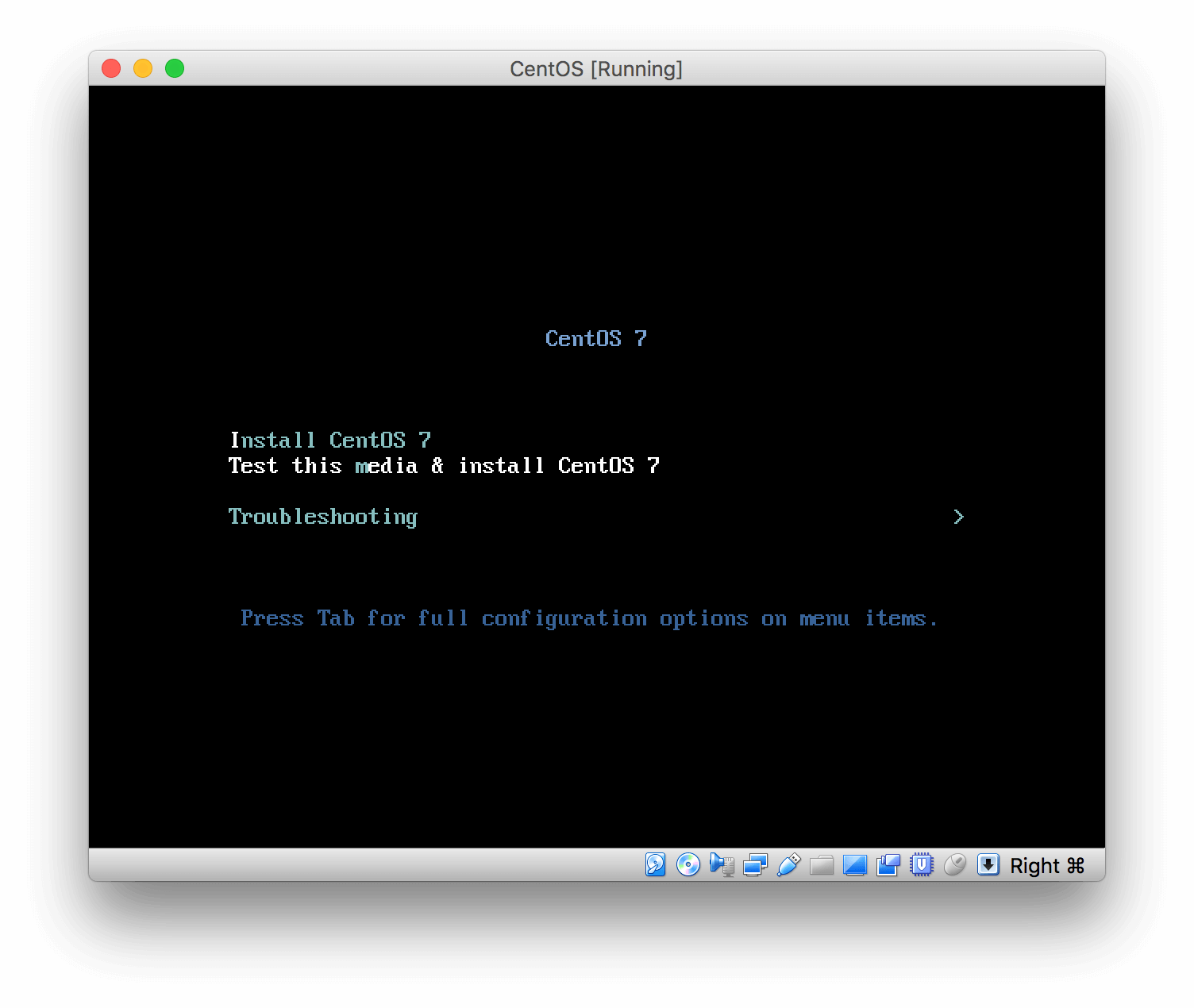
<p>Test the media and install
<img src="/assets/posts/2018-07-05-how-to-install-centos-7/1_InstallCentOS7TestMediaAndInstall.png" alt="Install CentOS 7 - Test media and install" />
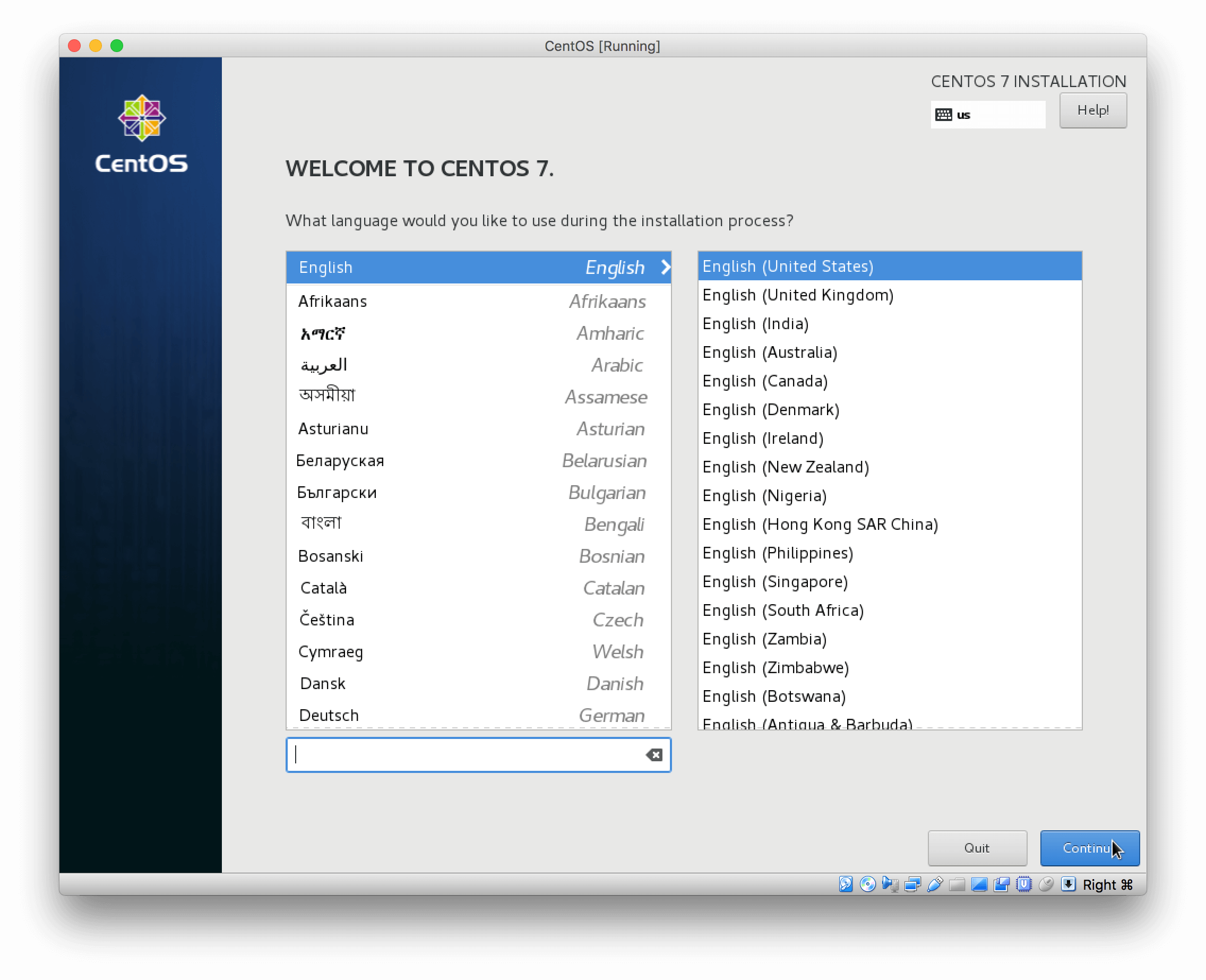
Set your preferred language
<img src="/assets/posts/2018-07-05-how-to-install-centos-7/2_InstallCentOS7SetLanguage.png" alt="Install CentOS 7 - Set language" />
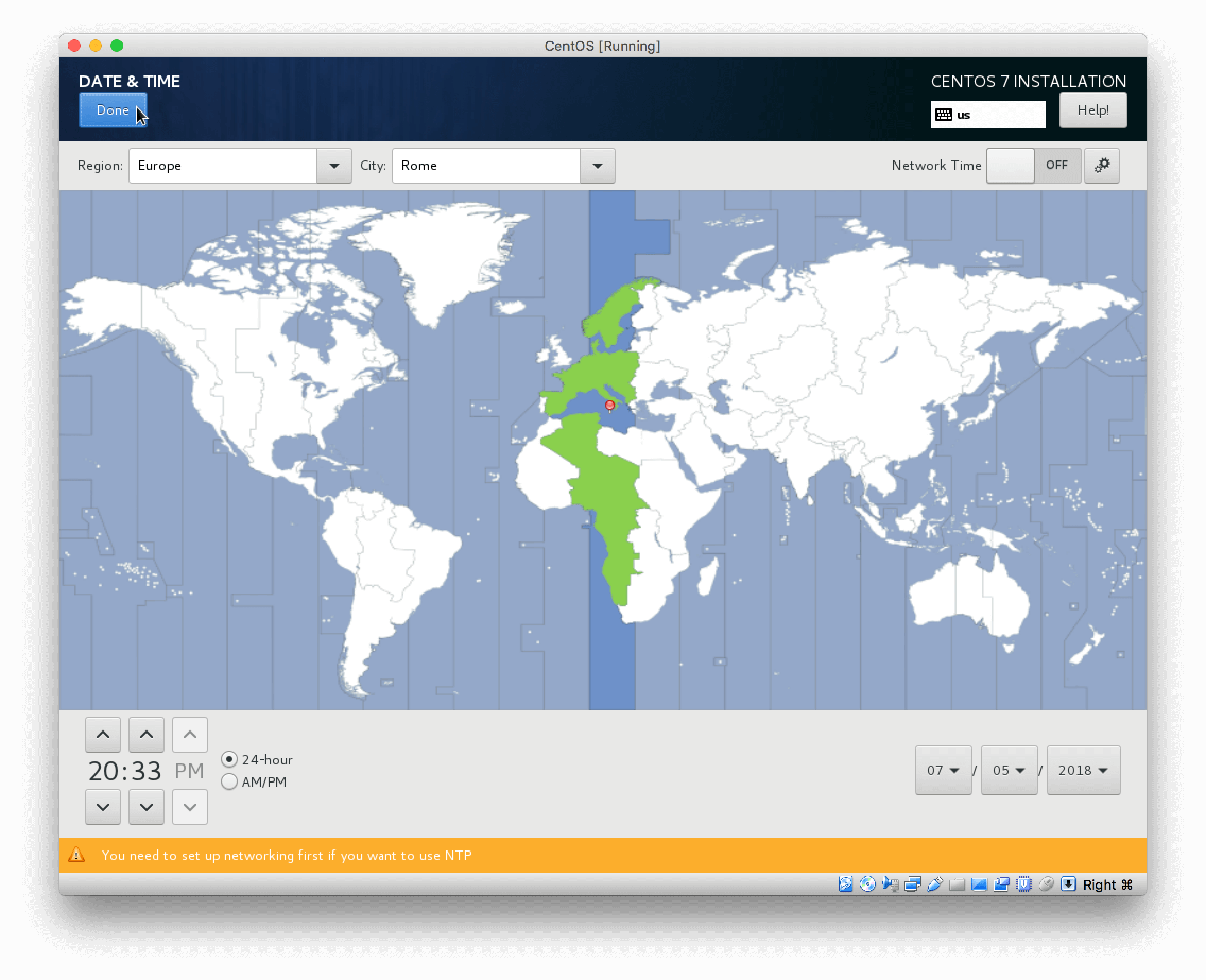
Set your time zone
<img src="/assets/posts/2018-07-05-how-to-install-centos-7/3_InstallCentOS7SetTimeZone.png" alt="Install CentOS 7 - Set time zone" />
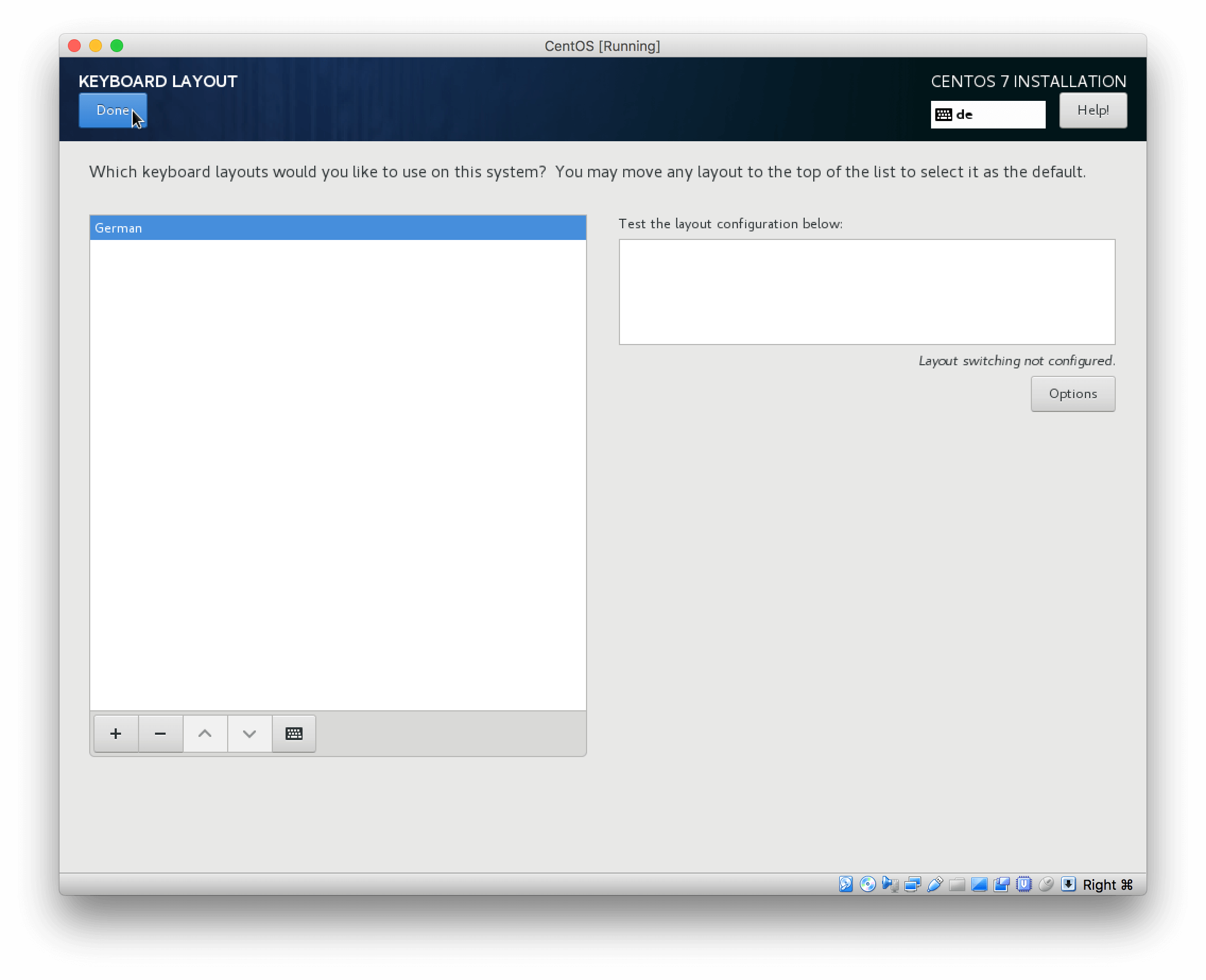
Set your preferred keyboard layout
<img src="/assets/posts/2018-07-05-how-to-install-centos-7/4_InstallCentOS7SetKeyboardLayout.png" alt="Install CentOS 7 - Set keyboard layout" />
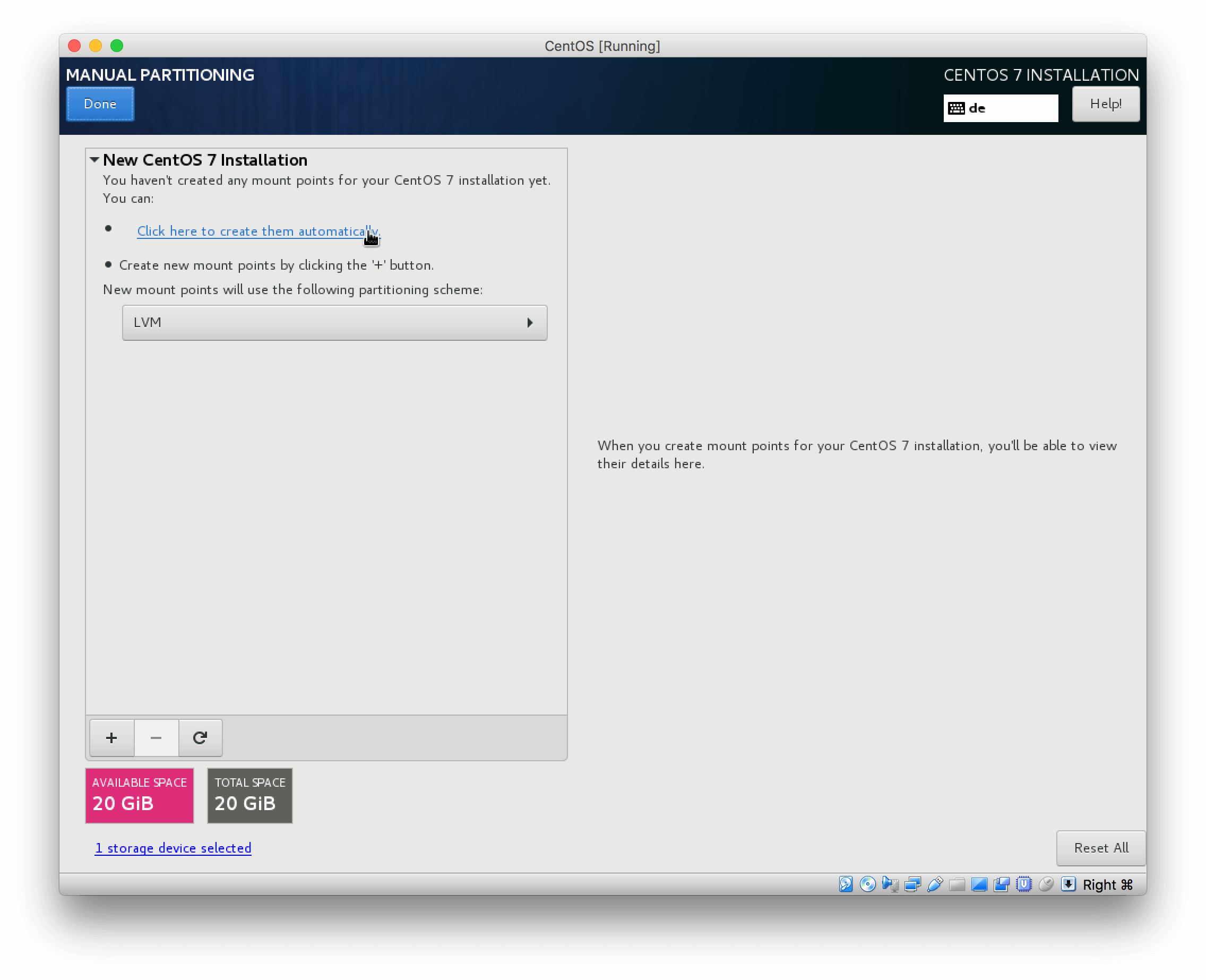
Configure you disk, I prefer the manual way since all my Linux Server are webservers
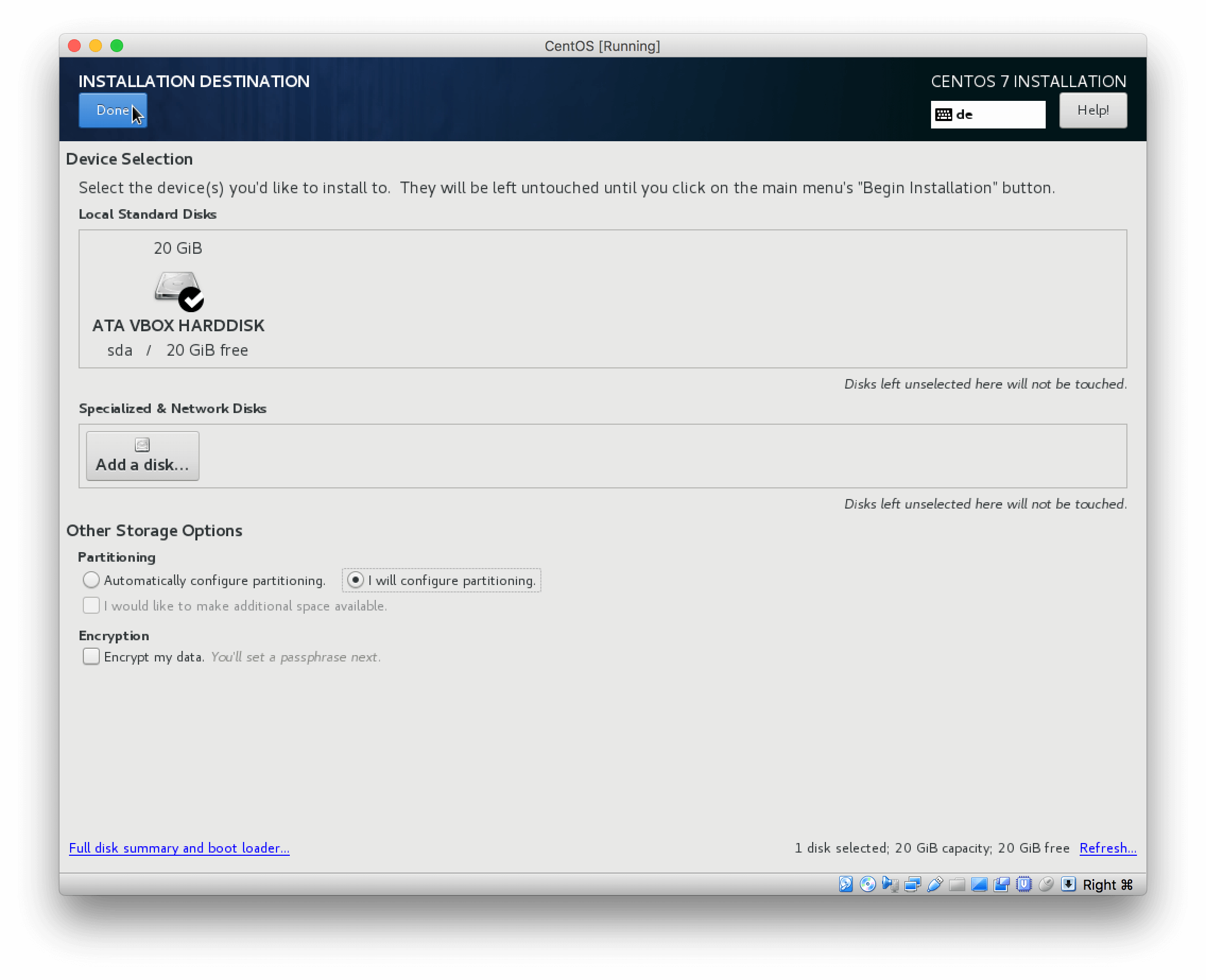
<img src="/assets/posts/2018-07-05-how-to-install-centos-7/5_InstallCentOS7ConfigurePartitioning1.png" alt="Install CentOS 7 - Configure partitioning" />
Create the basic partitioning
<img src="/assets/posts/2018-07-05-how-to-install-centos-7/6_InstallCentOS7ConfigurePartitioning2.png" alt="Install CentOS 7 - Configure partitioning" />
If you wish to leave it to the defaults, proceed without making any further changes
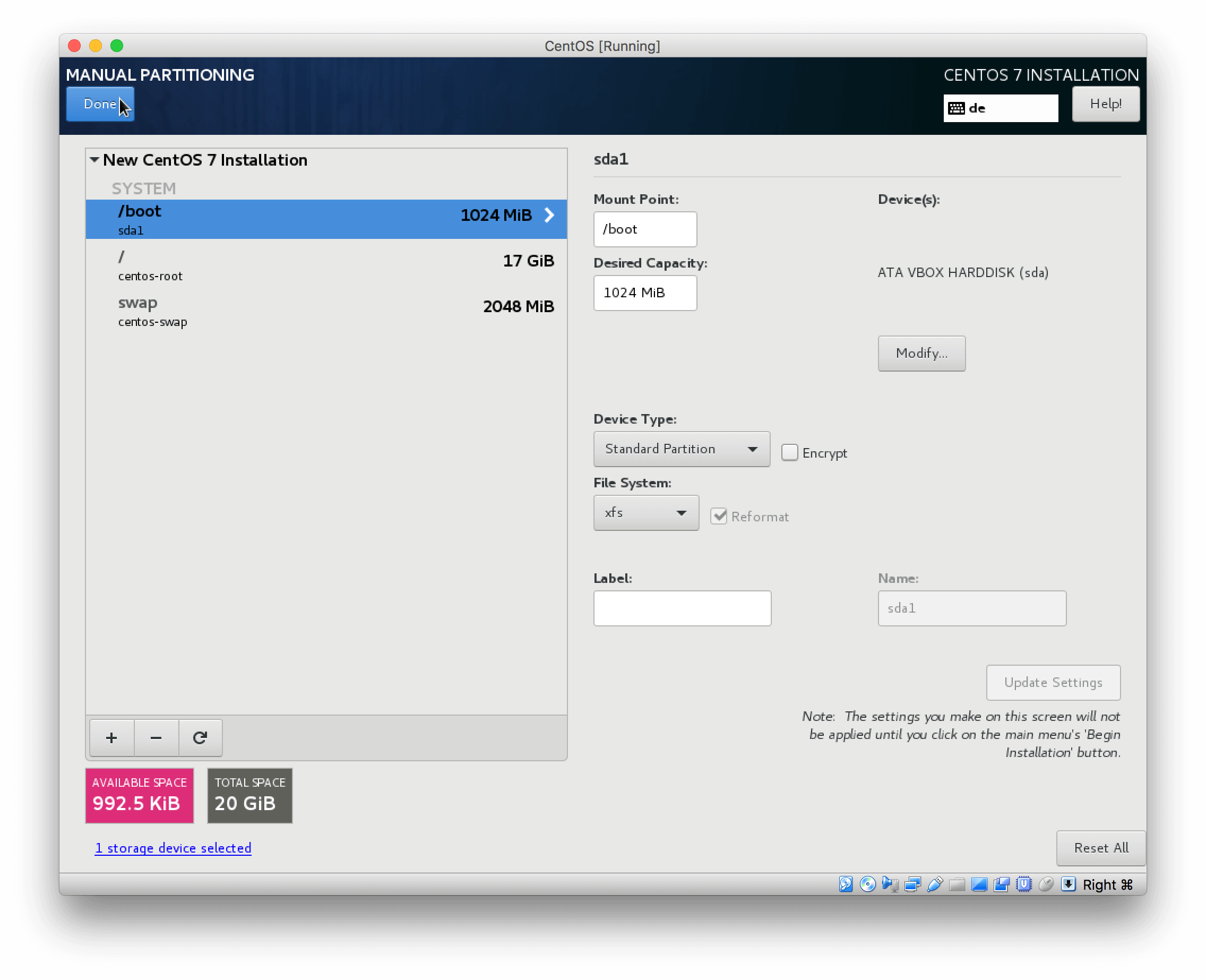
<img src="/assets/posts/2018-07-05-how-to-install-centos-7/7_InstallCentOS7ApplyDefaultPartitioning.png" alt="Install CentOS 7 - Apply default partitioning" />
If you want to set up dedicated partitions for /home and /var
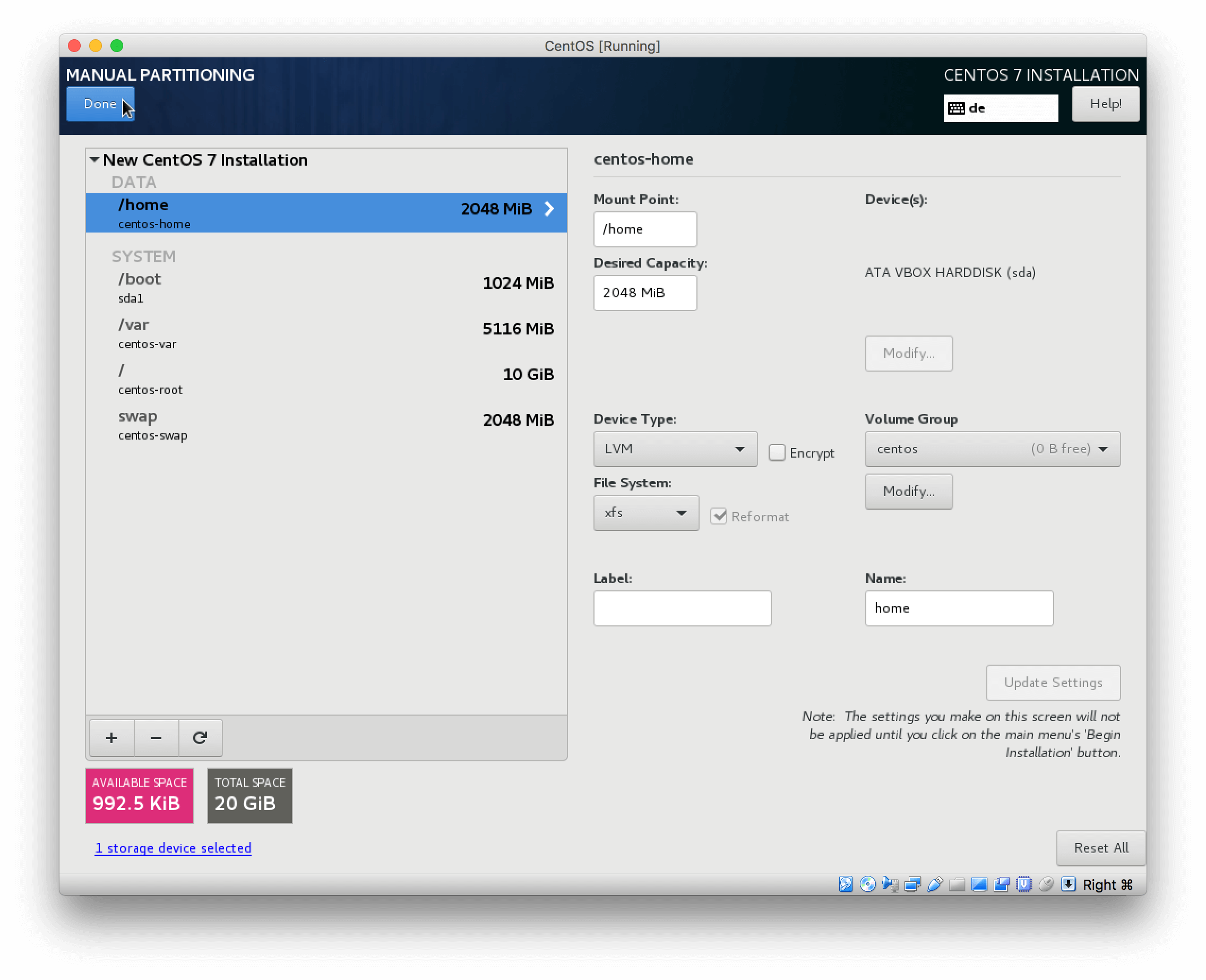
<img src="/assets/posts/2018-07-05-how-to-install-centos-7/8_InstallCentOS7ApplyCustomPartitioning.png" alt="Install CentOS 7 - Apply custom partitioning" />
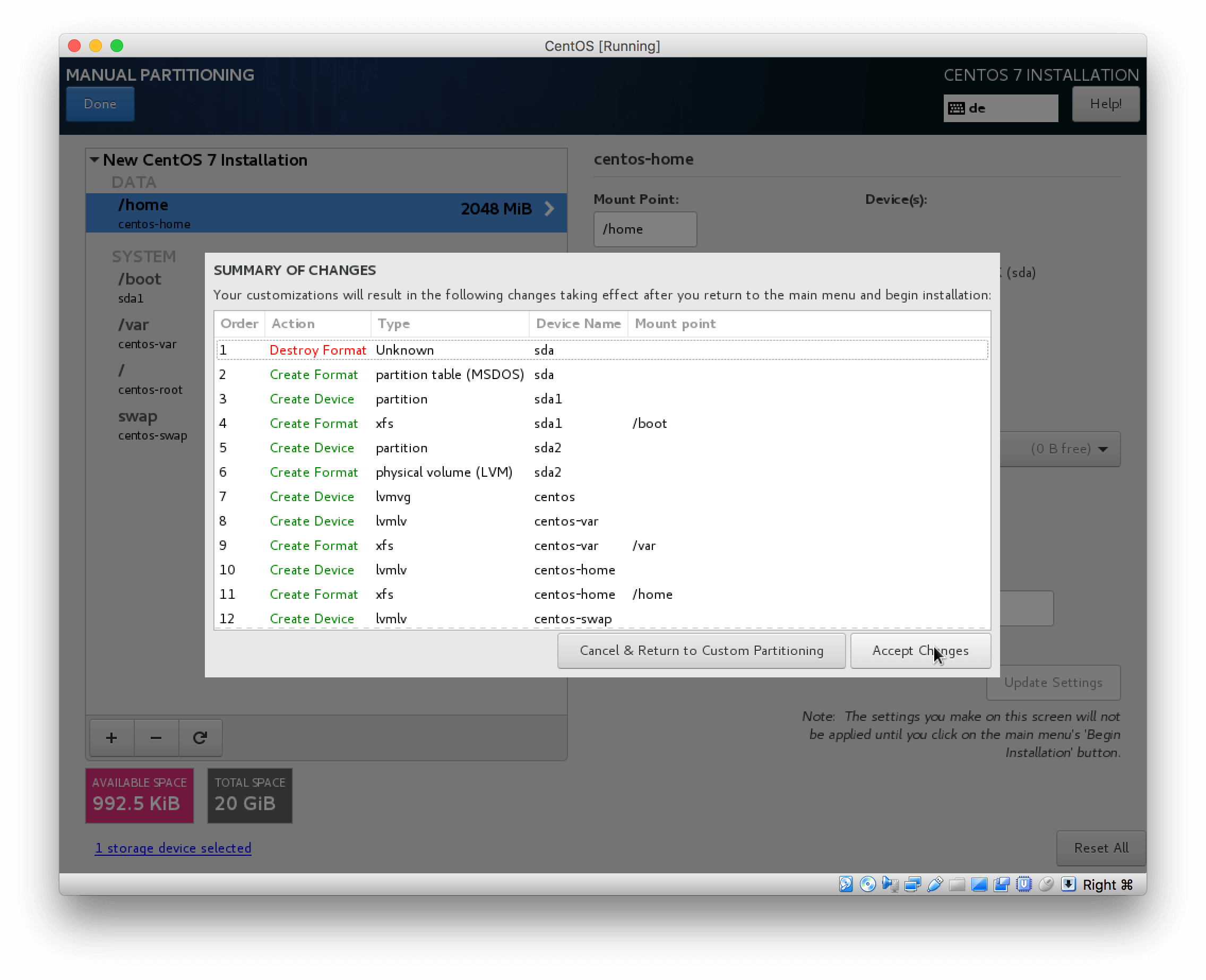
Confirm the custom partitioning
<img src="/assets/posts/2018-07-05-how-to-install-centos-7/9_InstallCentOS7ConfirmCustomPartitioning.png" alt="Install CentOS 7 - Confirm custom partitioning" />
Set your hostname and enable networking
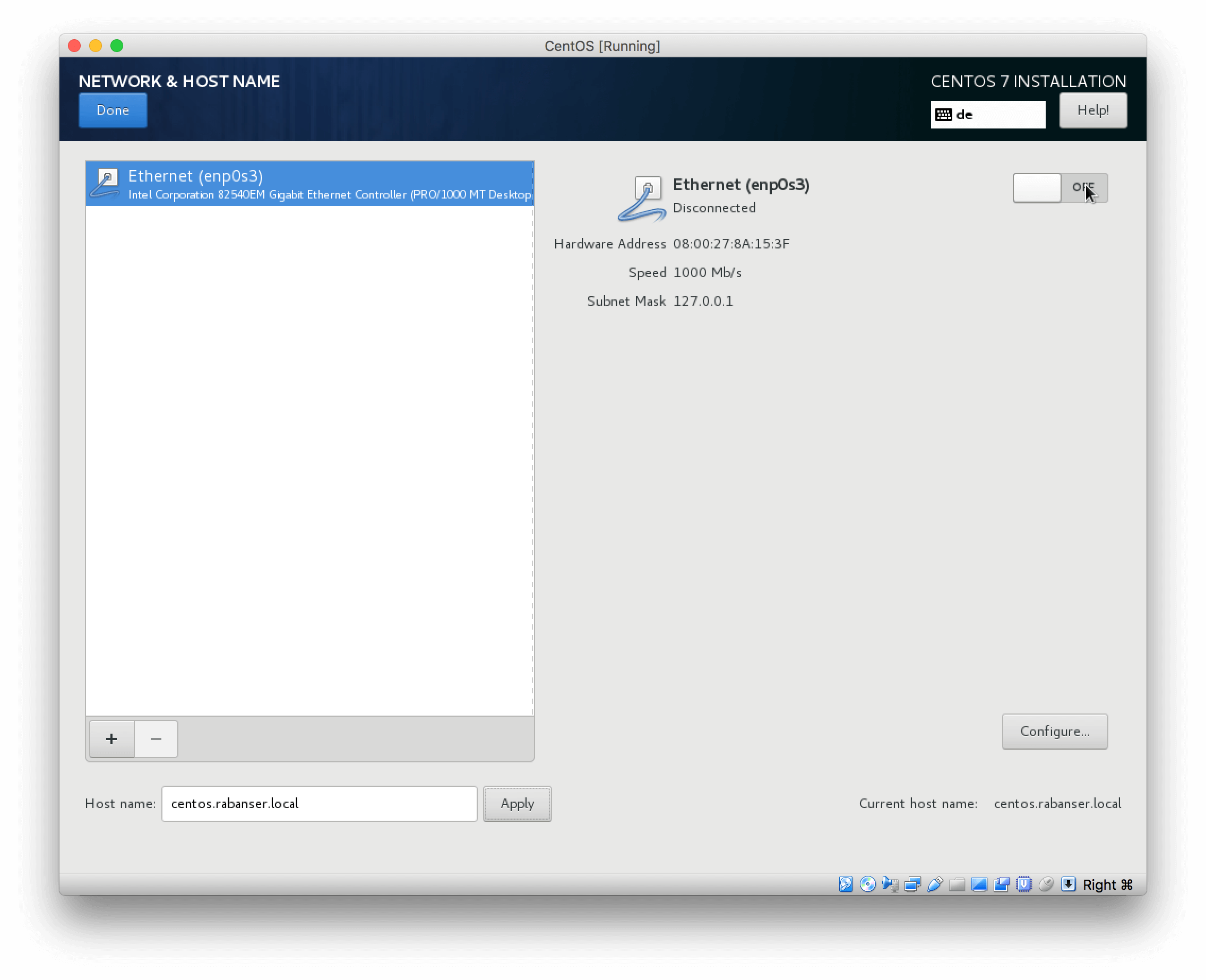
<img src="/assets/posts/2018-07-05-how-to-install-centos-7/10_InstallCentOS7SetHostname.png" alt="Install CentOS 7 - Set hostname" />
If you have a DHCP server on your network you should see something like this
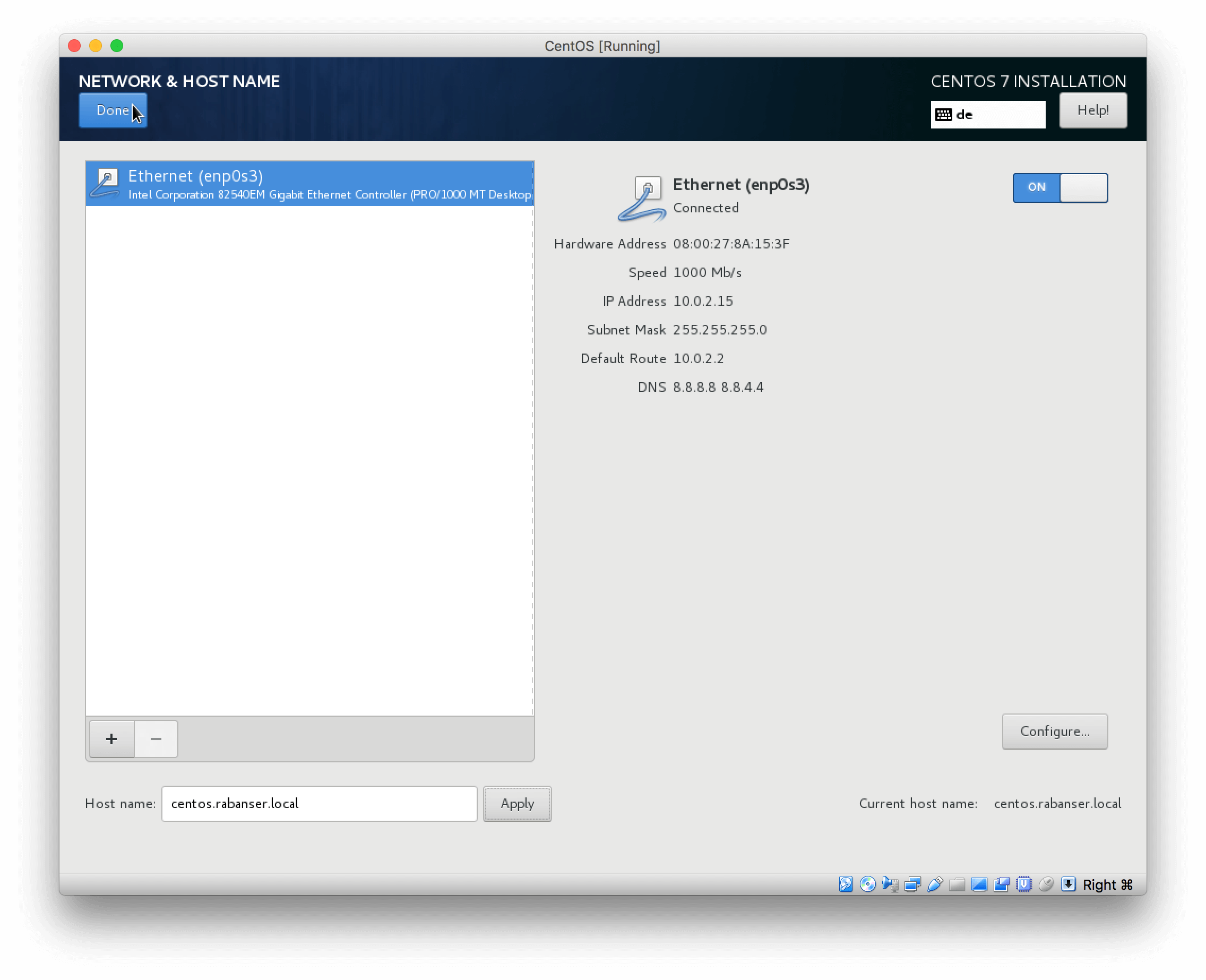
<img src="/assets/posts/2018-07-05-how-to-install-centos-7/11_InstallCentOS7EnableNetworking.png" alt="Install CentOS 7 - Enable networking" />
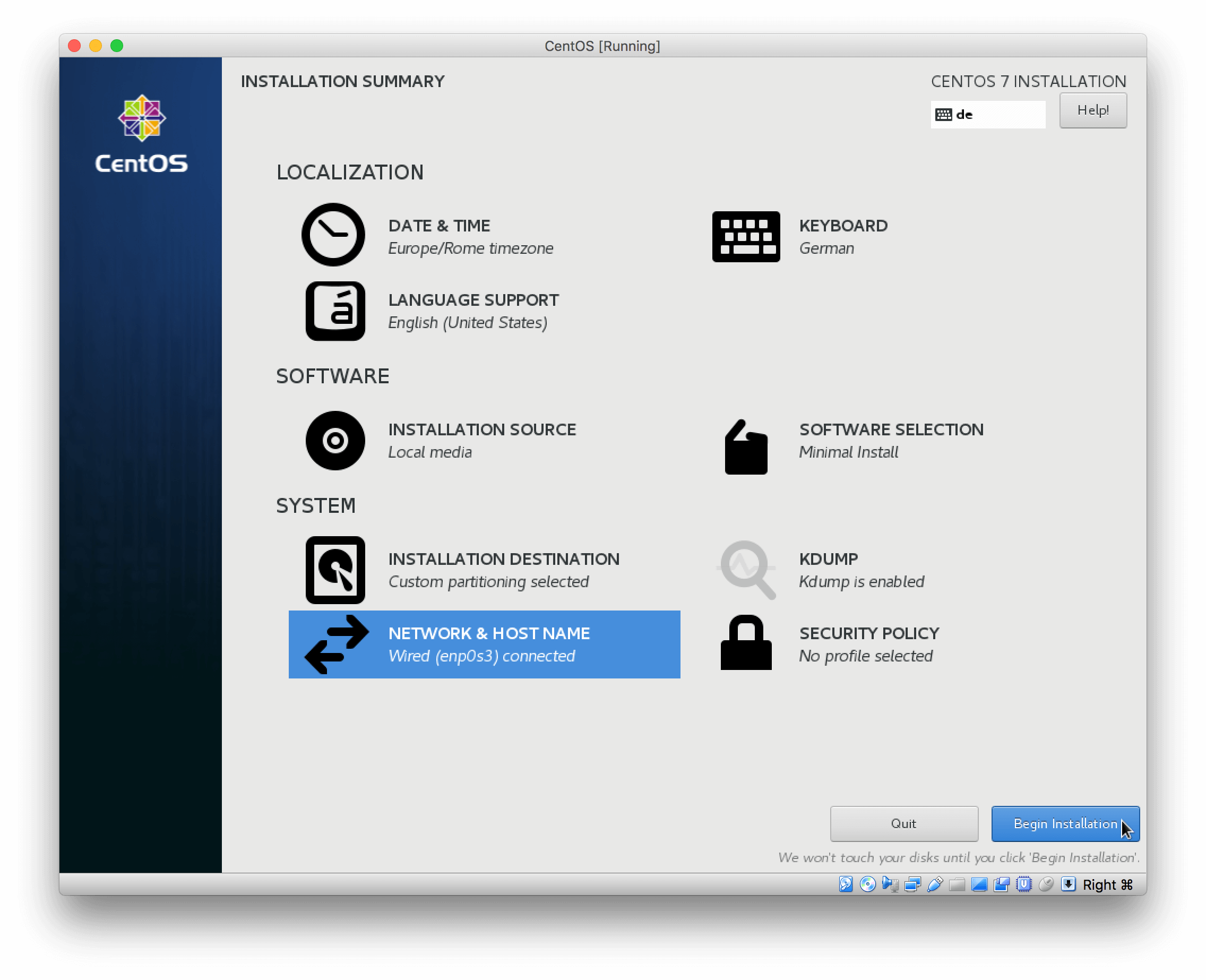
Start the installtion
<img src="/assets/posts/2018-07-05-how-to-install-centos-7/12_InstallCentOS7StartInstallation.png" alt="Install CentOS 7 - Start installation" />
While we wait, set up the root password
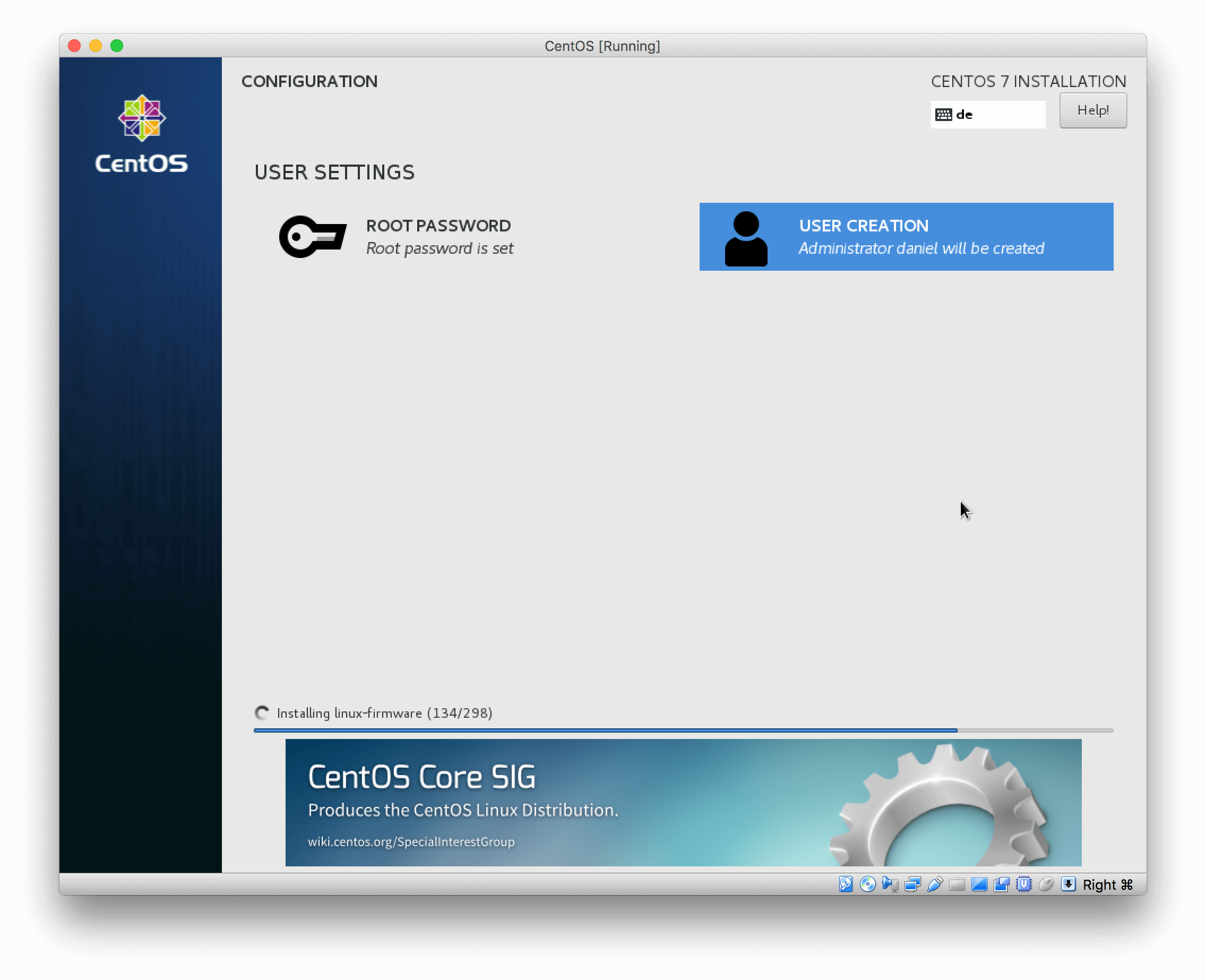
<img src="/assets/posts/2018-07-05-how-to-install-centos-7/13_InstallCentOS7Wait.png" alt="Install CentOS 7 - Wait" />
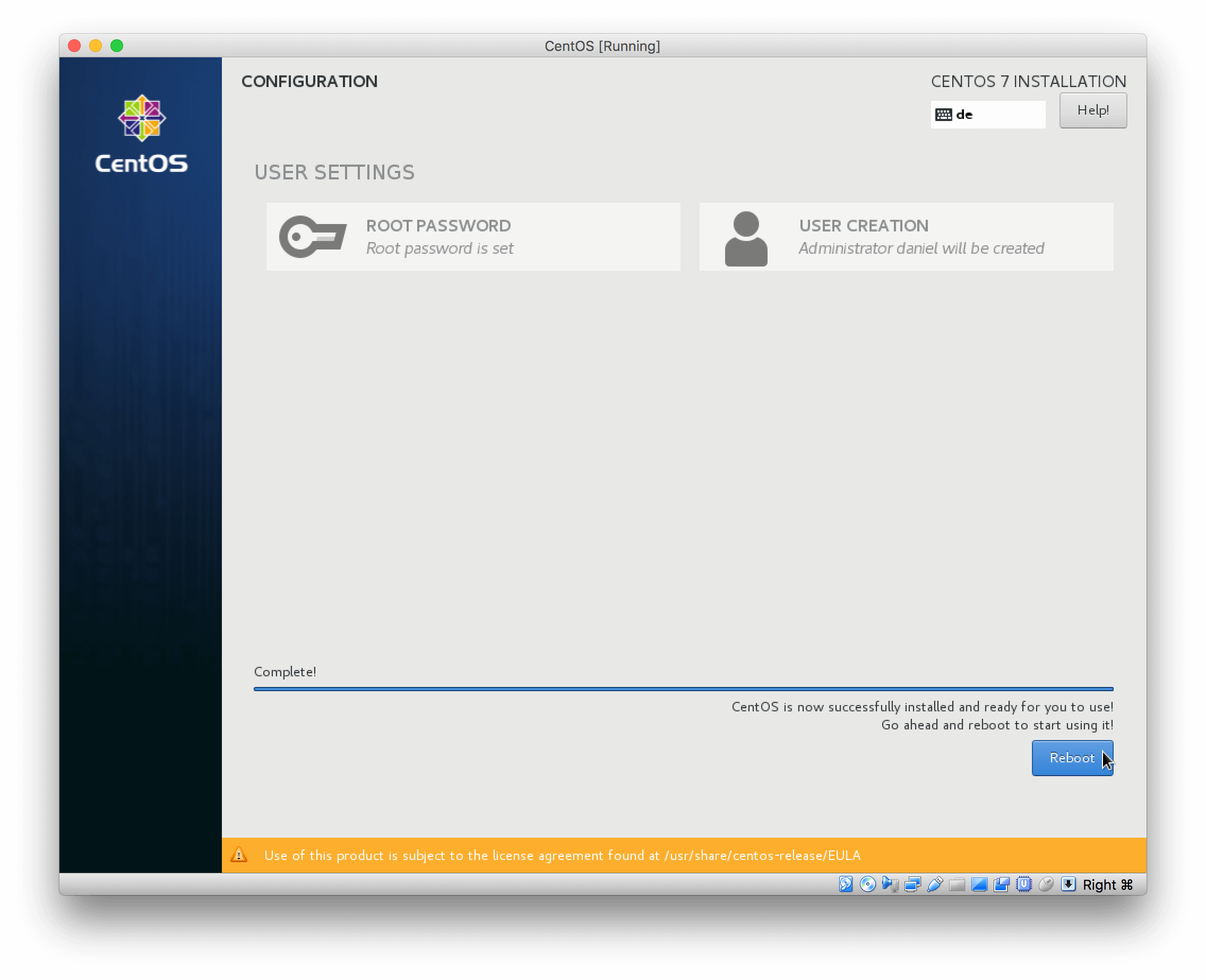
Reboot the system
<img src="/assets/posts/2018-07-05-how-to-install-centos-7/14_InstallCentOS7Reboot.png" alt="Install CentOS 7 - Reboot" />
If you have forgotten the hostname/IP of your system log in and check it
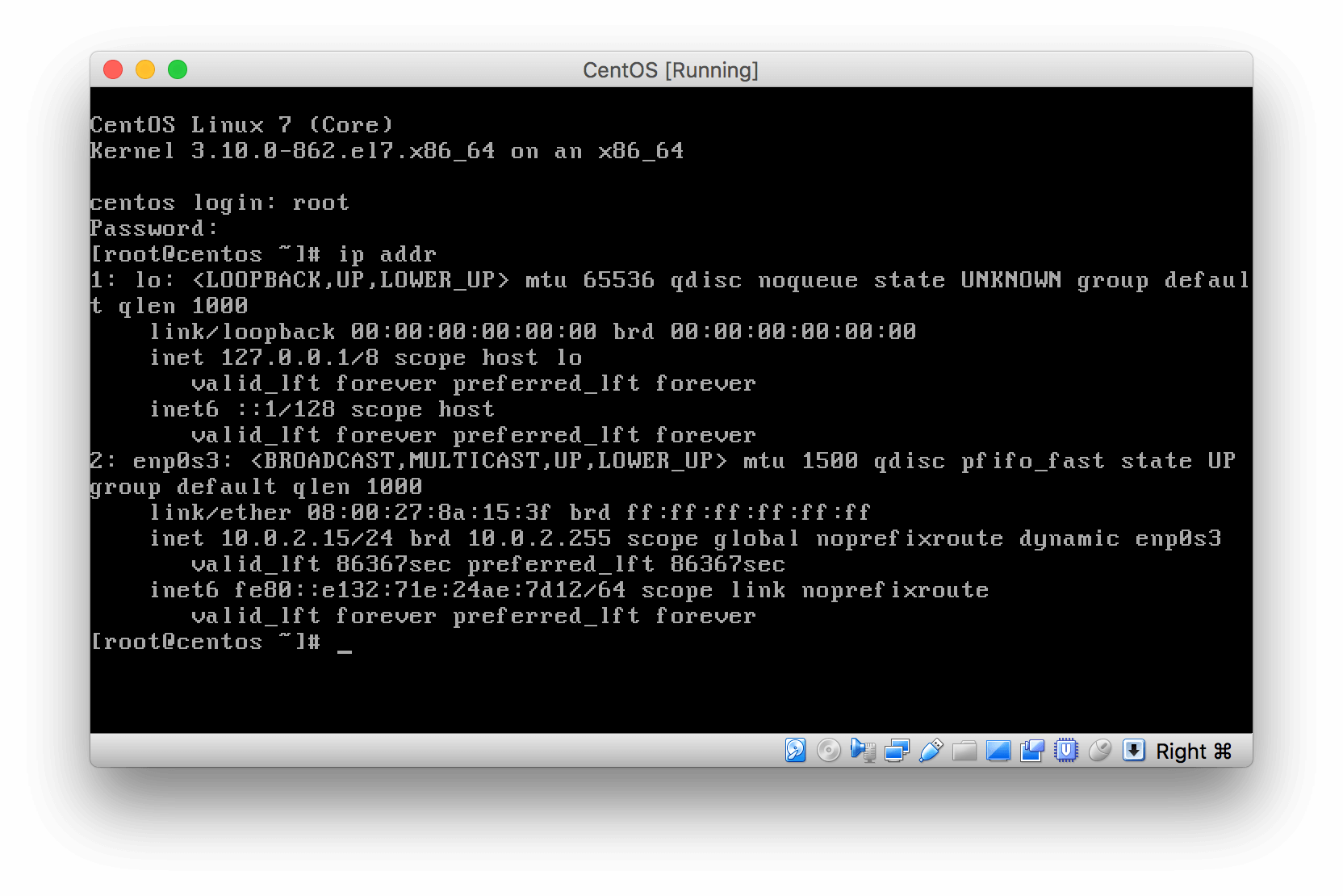
<img src="/assets/posts/2018-07-05-how-to-install-centos-7/15_ConnectToCentOS7AndFindIPAddress.png" alt="Install CentOS 7 - Connect and find IP" /></p>

<h2 id="basic-system-setup">Basic system setup</h2>
<p>Proceed with a very basic system setup/configuration</p>

<p><br /></p>

<h3 id="update-your-system">Update your system</h3>
<p>First thing you want to do is update your system</p>
<div class="language-plaintext highlighter-rouge"><div class="highlight"><pre class="highlight"><code>[root@centos ~]# yum update
</code></pre></div></div>
<p><br /></p>

<h3 id="install-drivers">Install drivers</h3>
<p>If you are running CentOS 7 as a VM on Hyper-V you don’t need to do anything :)<br />
If you are running on vmWare ESXi you will need to install vmWare Tools:</p>
<div class="language-plaintext highlighter-rouge"><div class="highlight"><pre class="highlight"><code>[root@centos ~]# yum install open-vm-tools
</code></pre></div></div>]]></content><author><name>Daniel Rabanser </name></author><category term="linux" /><summary type="html"><![CDATA[My first technical post, who would have thought I actually post here something, yeah me neither. So, if you are interested in how to install CentOS 7 read ahead.]]></summary></entry><entry><title type="html">I got Disqus working</title><link href="https://www.rabanser.tech/2018/05/08/I-got-Disqus-working.html" rel="alternate" type="text/html" title="I got Disqus working" /><published>2018-05-08T19:00:00+00:00</published><updated>2018-05-08T19:00:00+00:00</updated><id>https://www.rabanser.tech/2018/05/08/I-got-Disqus-working</id><content type="html" xml:base="https://www.rabanser.tech/2018/05/08/I-got-Disqus-working.html"><![CDATA[<p>I got Disqus working. Wait what? That means you [the potato audience] can now comment on stuff….</p>

<p><strong>Update 2018/0908</strong>
Now with reactions? Maybe I don’t know.</p>]]></content><author><name>Daniel Rabanser </name></author><category term="stuff" /><summary type="html"><![CDATA[I got Disqus working. Wait what? That means you [the potato audience] can now comment on stuff…. Update 2018/0908 Now with reactions? Maybe I don’t know.]]></summary></entry><entry><title type="html">I’m a blogger now?</title><link href="https://www.rabanser.tech/2018/05/07/Im-a-blogger-now.html" rel="alternate" type="text/html" title="I’m a blogger now?" /><published>2018-05-07T19:08:15+00:00</published><updated>2018-05-07T19:08:15+00:00</updated><id>https://www.rabanser.tech/2018/05/07/Im-a-blogger-now</id><content type="html" xml:base="https://www.rabanser.tech/2018/05/07/Im-a-blogger-now.html"><![CDATA[<p>Apperently I’m a blogger now. How did that happen you might ask, well I just wanted to try out GitHub pages a bit and here we are now.<!--excerpt--></p>
<blockquote>
  <p>So what can you expect on this Blog?</p>
</blockquote>

<p>Well to be honest probably nothing at all. I might post IT related stuff here at some point…</p>]]></content><author><name>Daniel Rabanser </name></author><category term="stuff" /><summary type="html"><![CDATA[Apperently I’m a blogger now. How did that happen you might ask, well I just wanted to try out GitHub pages a bit and here we are now.]]></summary></entry></feed>